Edit Sequence 

Access: Open this function from the following location:
-
Select Tools > Libraries > Edit Sequence
Important! This function is only available from the Menu Bar when all Cimatron files are closed.
Edit a single Automated Drill sequence without the need to load it to a matching sequence geometry. Cimatron automatically loads all the sequence data (geometrical data, cutter sequence data, and drill/mill parameters) where you can edit the data as needed.
Important! An Automated Drill license is required to use this function. Contact your local Cimatron Provider or Reseller for more information.
General Interaction
Open the Edit Sequence function (click the Access button above for information on accessing this function).
The Cimatron Explorer dialog is displayed with a list of sequences.
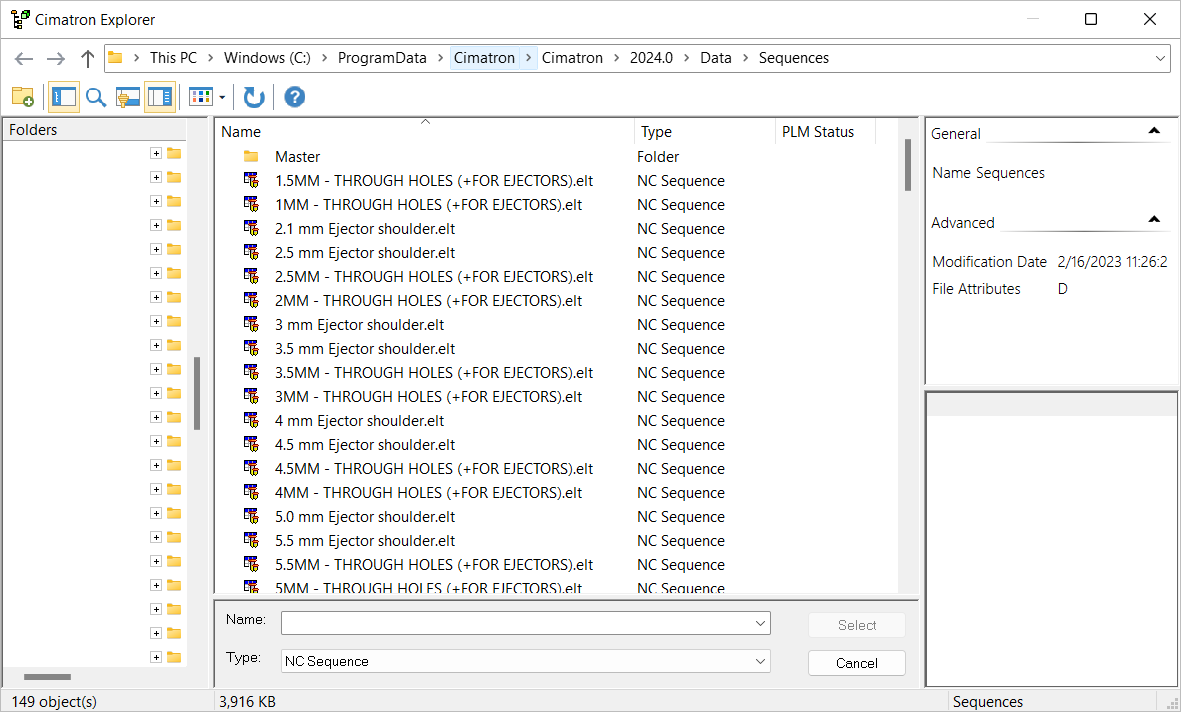
Select a sequence by clicking on it and then clicking Select.
A new NC file is opened displaying all the sequence data. Edit the data as needed (see Define/Edit the Drilling Sequence).
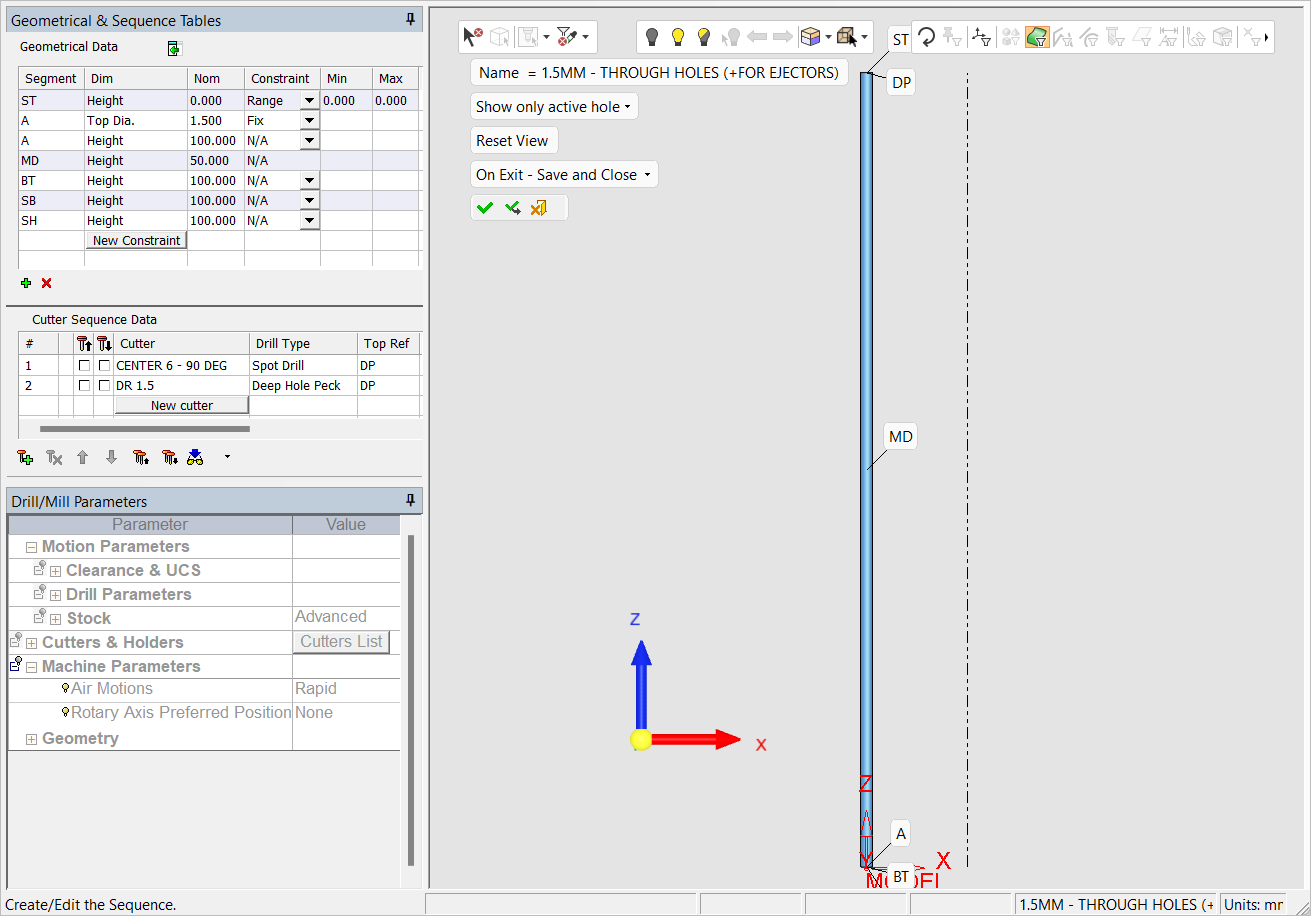
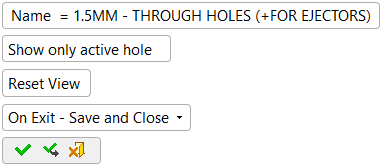
Use the screen parameters to change the sequence's name, show only the active hole, reset the view, or determine which files are closed (sequence file/NC file) upon exit.
|
Name = |
Edit the sequence's name (if needed). |
||||
|
Show only active hole |
Show only the active hole. |
||||
|
Reset View |
Reset the view to the sequence file's original view when it was opened. |
||||
|
On Exit - Save and Close / |
Toggle option that saves changes made to the sequence and closes the NC file or saves the sequence while keeping the NC file open.
|
Click Apply  to apply changes or OK
  apply changes and exit.