Journaling
The Journaling capability in Cimatron is used to record processes and actions within the Cimatron software to create a reference for developers who are writing code that makes use of API tools, and to make it easier to learn the syntax for a specific tool. By turning the recording on, using the tool, and then examining the created code, you can record your operations and turn them into actual code that you can view and edit in your preferred editor.
Journaling is available for use on several tools in Cimatron. When Journaling is active, these tools can be identified by the Journaling icon ( ) displayed in the bottom right corner of the tool button.

When used in conjunction with the Cimatron API, Journaling becomes a powerful automation tool. For more on the Cimatron API, see Cimatron SDK.
Journaling settings
Recorded processes (journals) are saved using the default settings that are configured in Preferences>General>Journaling.
Enabling Journaling
Journaling is enabled on the Cimatron Control Panel. Click the API tab and then double-click the Enable Journaling row. An alert is displayed to say Journaling was enabled, and the row is highlighted when the feature is active.
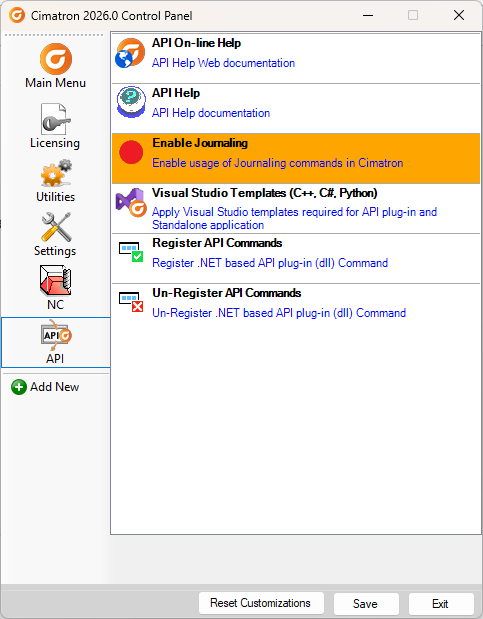
Click Exit when you have finished. To switch Journaling off, double-click the Enable Journaling row to remove the highlight.
Using Journaling
The Journaling toolbar is visible in the main toolbar if the feature is enabled. There are 4 buttons, shown here:
|
Button |
Label |
Function |
|
|
Record |
Record a process |
|
|
Stop |
Stop Recording and save the recorded actions |


Recording actions using Journaling
Use the Journaling capabilities to capture actions performed in the Cimatron environment.
-
Click Start Recording to begin a journal record.
-
In the dialog, enter a name for the Journal and optionally select a new location. Click Save to save it to your configured default location, or click Save As Type to change the language used to save the journal - Select either C# or Python.
-
Perform the actions you wish to add to the journal record.
-
Click Stop Recording to end the record.