Using Feature Detection
Parts that will be created using an NC operation will require an NC process and toolpath. Features recognized by the feature detection function can be fed into NC templates to automate toolpath generation.
This feature is only available in the Part and NC environments.
Detect Features with CAD AI
-
Open the part on which you want to perform feature recognition.
-
Click the Feature Detection button.
-
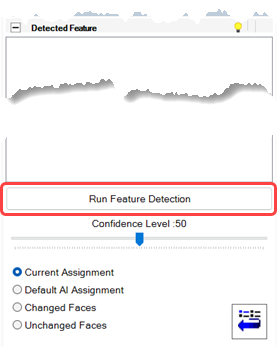
Adjust the slider to set the Confidence Level as required.
For example, a confidence level of 75% means that only features recognized with 75% or higher confidence will be categorized. Features with confidence below this threshold will remain uncategorized. -
Click Run Feature Detection to start the analysis.
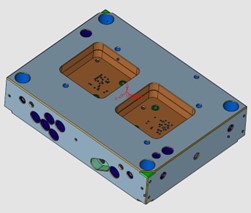
When the process is complete, all recognized faces are assigned the color that corresponds to their detected Feature Type.
Recognized geometry is displayed in the Feature Detection pane.
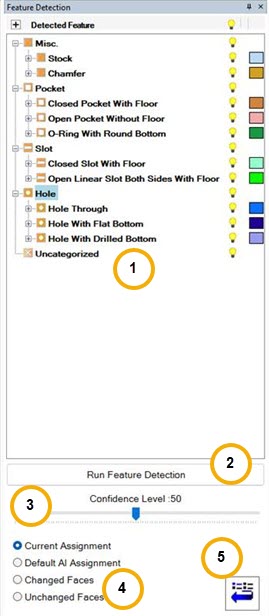 |
|
Hierarchical Result Tree
All faces that belong to a single detected feature are treated as one Feature entity and are attached to that Feature node. This system provides a clear, structured, and manageable hierarchy that allows you to easily visualize, show/hide, rename, recolor, attach, detach, or reassign features as needed. This structured approach significantly improves feature management, visualization control, and downstream usage in NC automation workflows.
Delete an entry from the Tree
Right click on any entry in the tree and select Delete. The item is removed from the tree and any assignments are deleted - This action only removes the options that can be assigned to features, faces are not deleted from the part.
Visibility of selected features
Features that have been recognized can be hidden or displayed to make it easier to apply attributes to unassigned features.
-
Right-click on any entry in the tree and select Hide Other to change the visibility of items in that category.
-
Show All and Hide All options are available at the top of the Feature Detection pane.
-
The visibility bulb icon switches the visibility of features on or off.
-
Click the icon on a row in the tree to change item visibility.
-
Click the icon at the top of the tree to change visibility of all items in the tree,
-
Rename a detected feature
Right-click on a result in the Hierarchical Tree and select Rename.
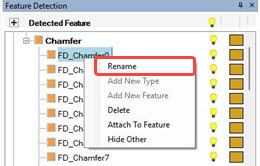
Enter the new name and click OK.
Attach to Feature
Right-click on a result in the Hierarchical Tree and select Attach to Feature.
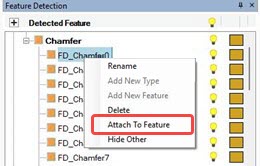
Any faces selected prior to running this function will be attached to the feature.
Change the applied color
Right-click on the assigned color box to display the color palette.
Click on the color you want to assign to the recognized features in this category.
Add a new Feature
Right-click on a result in the Hierarchical Tree and select Add New Feature.
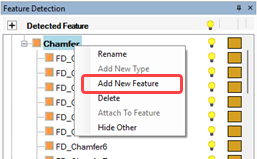
Note: Any faces selected prior to running this function will be added to the new feature.
Enter the new feature name and click OK.
Add a new Type
Right-click on a result in the Hierarchical Tree and select Add New Type.
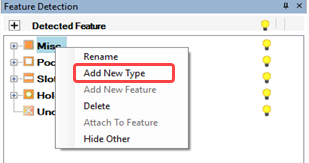
Enter the new type and click OK.