How to select technological points
 Creating Technological Points
Process
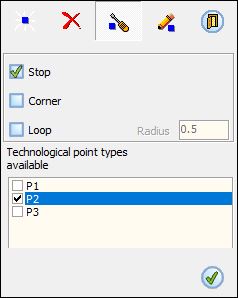
The first thing to do is select the tech. points we want to apply.
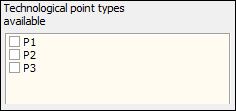
More than one technological point can be selected an applied on a geometry.
The allowed technological point types depend on the machine and they are allowed to be select or not in coherence with this fact.
Points will be drawn in a different colour depending on the selected tech. points.
It is also possible to select "User defined" technological points.
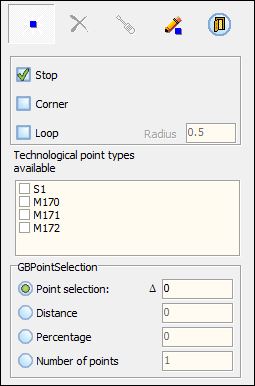
Once the tech. points are selected, they must be located on the contour.
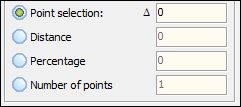
By Point selection we have the option of setting and increase in distance in relation to the selected point by introducing a not zero value in the adjacent field.
This increase can be a positive or a negative value which means if it goes in the rotation direction or against.
By Distance and by Percentage involve calculating a distance from the start point.
By Number of points we can manually input the number of points required.
If an entry motion is defined, it will be easier to identify where the contour starts and where the tech. point will be located
but if there is not entry motion and the part is closed, the considered starting point will be the internal geometrical start which is not appreciable at first sight.
Functionality types
-
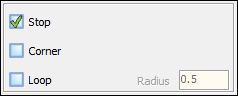
Stop
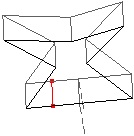
This will make an M00 Stop code appear on the ISO file, forcing the machine to stop the job. -
Loop
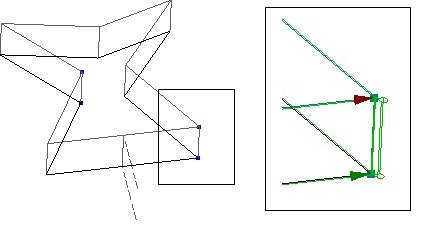
You can only define a loop on an external sharp corner. This will make the wire to do a loop movement in this position to ensure a sharp corner.
The loops radius value must be set in this panel.
-
Wizard
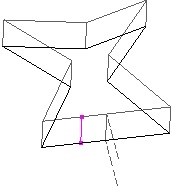
This points only will have effect in certain steps of certain wizards that need them to define specific parameters. -
Corner
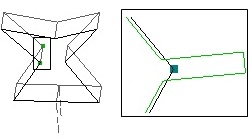
This points can only be selected on tangential discontinuity vertex, arcs or lines. They only will have effect to apply corner parameters in a constant conic process.
Look at Corners Tab for a detailed explanation.
 Deleting Technological Points
This option is allowed when there are previously technological points created.
If you click on an existing technological point, it will be removed.
Top Modifying Technological Points
This option is allowed when there are technological points already created.
First of all, the tech. point has to be selected by picking directly on it.
Once selected, the panel will show which options were activated when the tech. point was created.
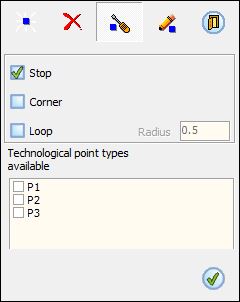
Then you can change everything you need and these new properties will be automatically applied.