Blend
Remove Geometry
In this chapter, the Blend tool will be used to create a blend face between the yellow and magenta sections shown below.
- Open the Inlet.elt file located in the following folder:
\\Cimatron_Documents\Tutorials\Cimatron_2025.0_Workfiles\Design -
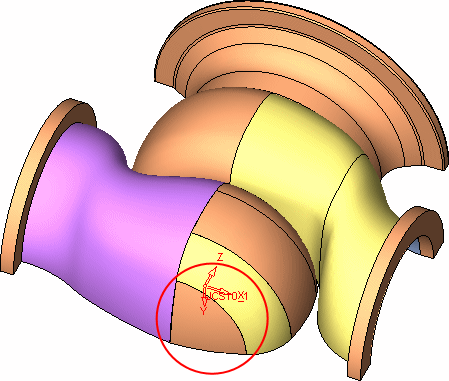
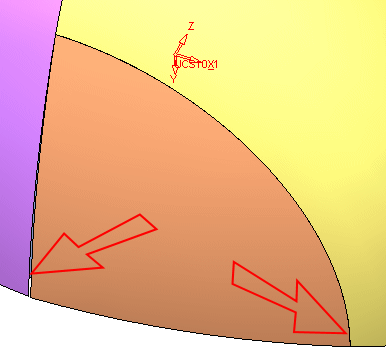
In the part document, there are gaps between the neighboring faces as indicated below:
-
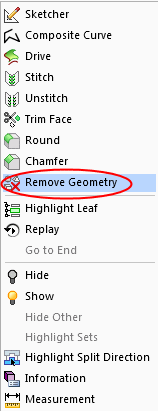
Pick the face circled in the previous step and select Remove GeometryRemove Geometry from the popup menu.
-
Click OK in the Feature Guide.
This operation could also have been carried out by first selecting Remove Geometry, picking the face, and selecting OK in the Feature Guide.
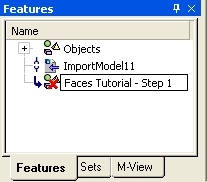
- Click the Remove Geometry operation in the Features Tree to highlight it.
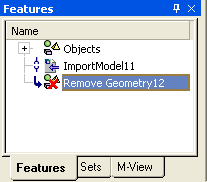
- Click on the operation again to enter Edit mode and change the name of the operation.