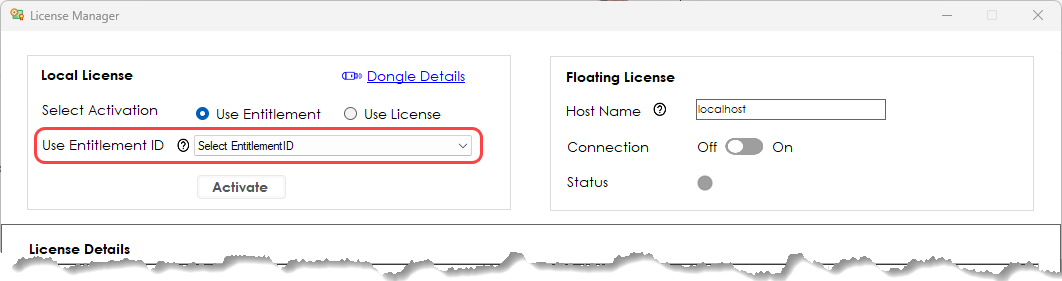
Select the EID. If you have multiple Entitlement IDs available, select the correct one in the Use Entitlement ID list.
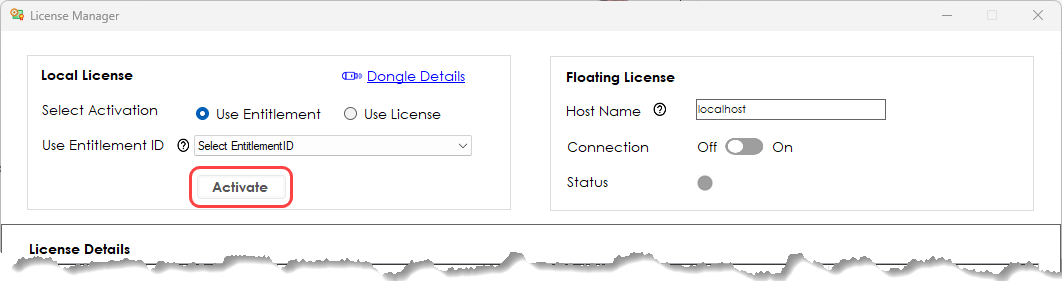
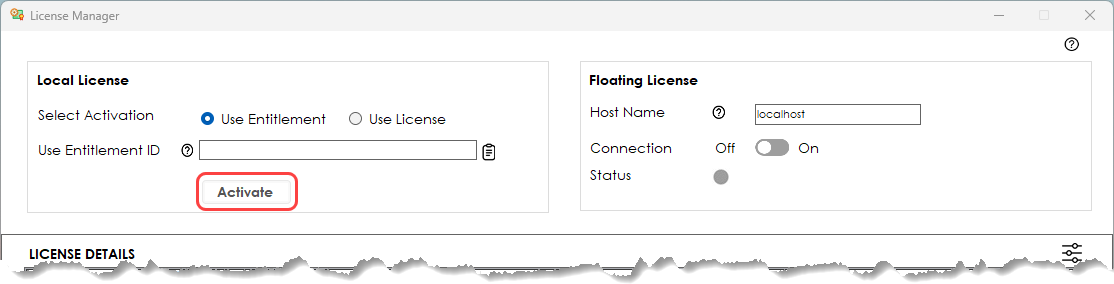
Click Activate to activate the license on this machine.
Your Cimatron entitlement must be activated before you can use it. This section describes the different paths to activate your copy of Cimatron. Cimatron version 2026 is activated using the License Manager on the Cimatron PC, the Superbox, or the Cimatron License Server.
There are three possible methods you can use to activate the license:
A Cimatron dongle may be used on a computer where Cimatron is installed. It may also be used to activate the Cimatron License Server on that host machine.
If the dongle is plugged into a machine that is connected to the internet, the EID is automatically added to the License Manager and will be available for selection in the Use Entitlement ID list.
You cannot activate Cimatron if the dongle is not connected to your computer. Make sure that the dongle is connected and that the EID shows in the License Manager, then click Activate.
Select the EID. If you have multiple Entitlement IDs available, select the correct one in the Use Entitlement ID list.
Click Activate to activate the license on this machine.
Activation by EID requires a live internet connection. If the dongle is for use in a Cimatron PC that is not connected to the internet, contact your Cimatron vendor.
If Cimatron is purchased for use on a machine without a dongle, you will be emailed an Entitlement ID (EID). Copy and paste the text string into the relevant field in the License Manager. Click Activate to enable your installation.
Open the License Manager.
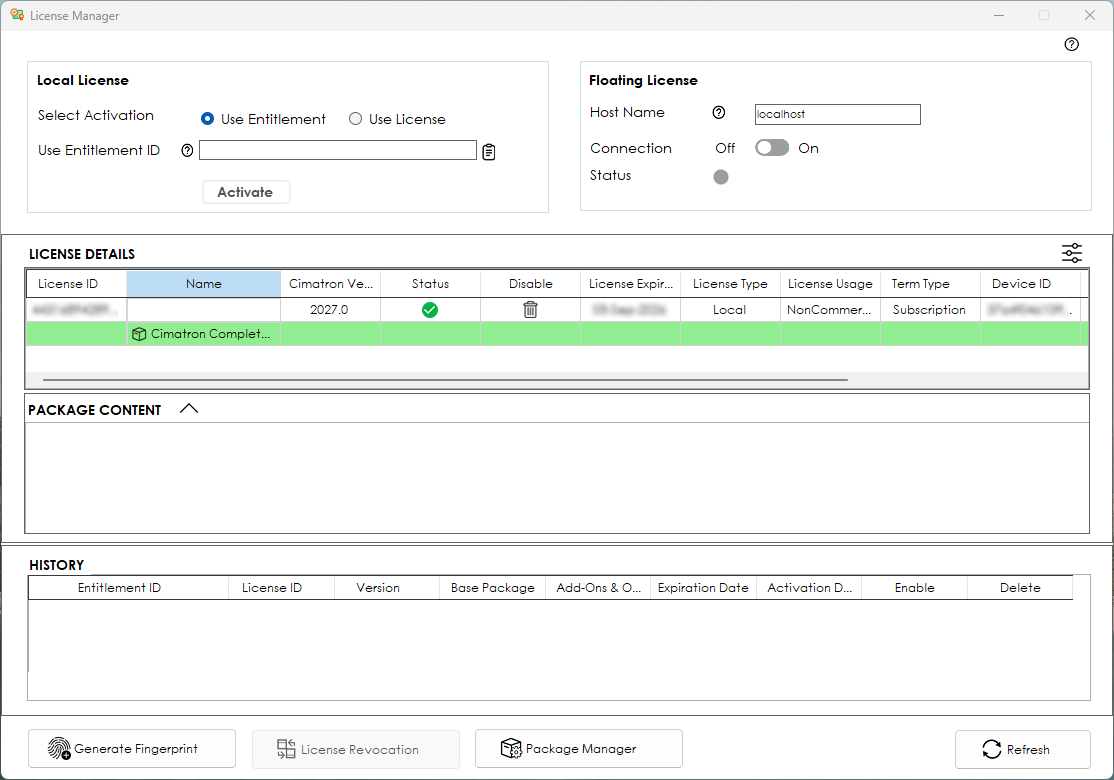
Enter the Entitlement ID:
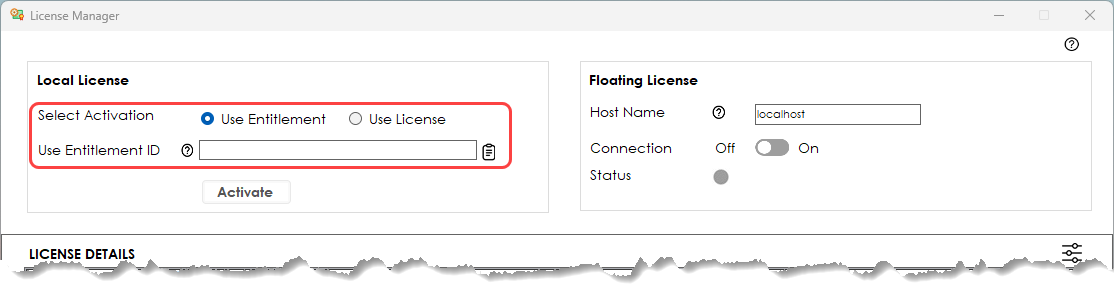
Click Activate.
Your entitlement may include one or more floating licenses depending on your purchase. These reside on a central server (Cimatron License Server) in a computer network. For more, see License Server.
The entitlement is activated using the same method as described for dongle or computer based licenses.
Note: The Cimatron License Server is installed separately to the Cimatron software.