Trim (Split)/Extend
Trim (Split)/Extend
The Trim (Split)/Extend tool in the Sketcher and Drafting enable the user to Split/Extend (or Trim/Extend) curve(s) by a Sketcher Curve or a Point. This tool is based on the standard Feature Guide interaction.
This option is frequently used in the Modify by Sketcher function for additional operations.
-
Open the sketcher.elt file.
-
Edit the first sketch.
-
Click the Trim (Split)/ ExtendTrim (Split)/ Extend
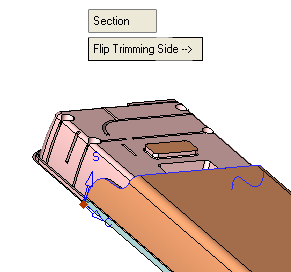 button.
This tool contains a Feature Guide. In the first stage, select the entities to be trimmed or split.The Trim/Extend screen parameter button can be toggled to Split/Extend. The system automatically determines whether to trim (split) the curve or to extend it according to location and size of the curves.
-
Select the four lines By Box. Drag the box at the lower area of the lines and Exit.
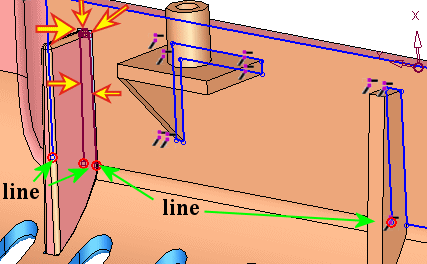
It is possible to undo/redo the operations within the sketch using the Undo/Redo icons.
-
Select the splitting/trimming curve. Select the spline as indicated in the picture.
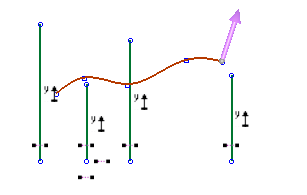
You can select and turn the blue arrow to define the removal direction. The arrow now points to the removal direction.
-
Click OK in the Feature Guide.
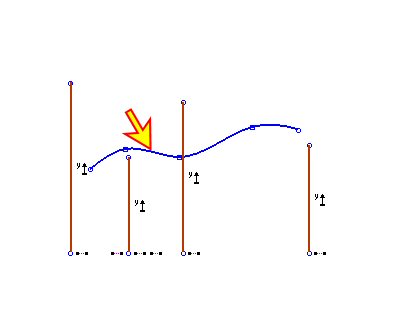
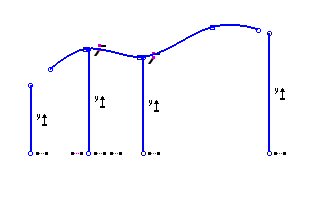
The result is a trimmed or extended entity according the original condition of the entity.
The entities that intersected or exceeded the spline were trimmed, while the entities which did not intersect the spline or its virtual extension were extended.
-
Exit the Sketcher.
