|
|
Boundaries - Step 1
-
Create a new blend with the three splines and select the left curve as the first boundary.
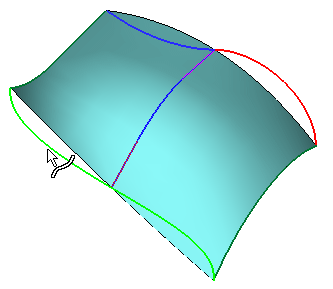
-
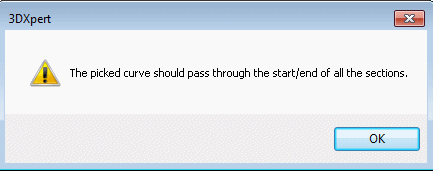
Now, try to select the right curve as the second boundary. This curve is a composite curve but in this situation only its individual curves can be selected.
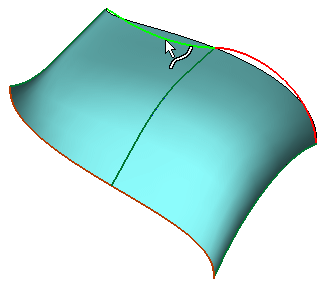
The warning message shown herehere is displayed.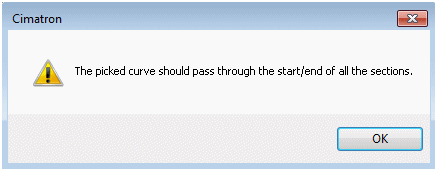
-
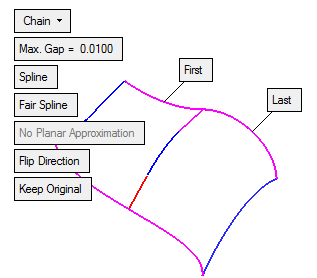
Exit the Blend function, click the Composite Curve buttonComposite Curve button
 , and make this curve into a spline as seen below.