Connect
Use this feature to connect ID numbers with BOM data to an assembly model. Numbers are assigned automatically based on whether they are first level or only parts. Different numbers are also assigned according to part type.
- Double-click on ID number 802 and change the ID number to 600.
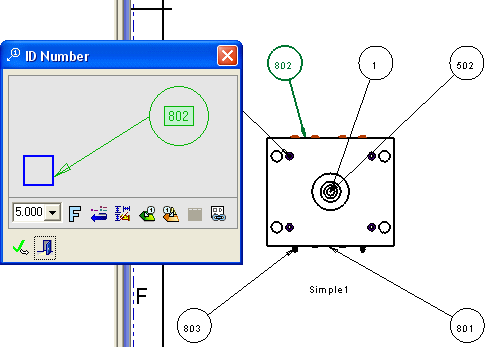
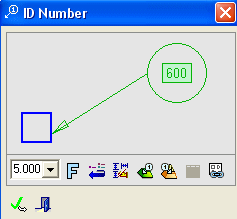

The BOM has been updated automatically.
An ID number that appears in the BOM but is not attached to a component will now be created.
- Copy the view shown below from the first drawing you created to the current drawing.
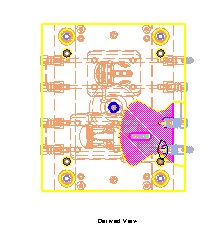
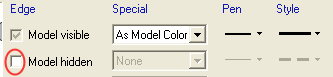
- Deselect the Model Hidden parameter in the View attributes.
- Paste the view. Change its name to Derived View.
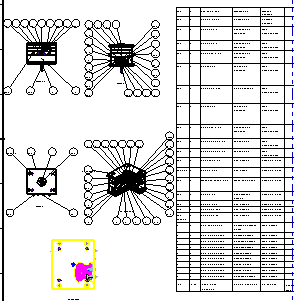
- Enter the ID Number function and place a number below the Derived view. Do not associate the arrow to any entity.
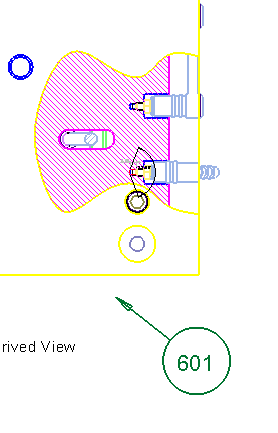
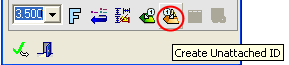
- In the ID Number dialog box, click Create Unattached IDCreate Unattached ID.
- Select the derived view and exit.
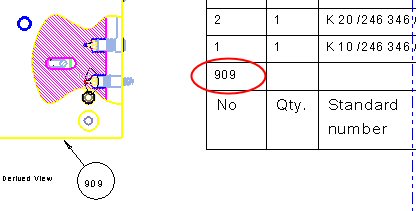
The new row in the BOM displays the next available number (the one that became available when you changed the ID number previously).
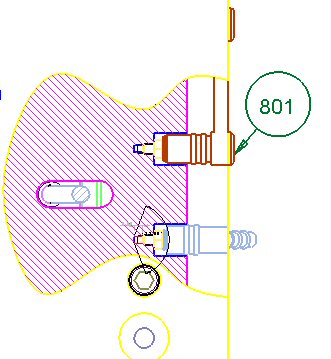
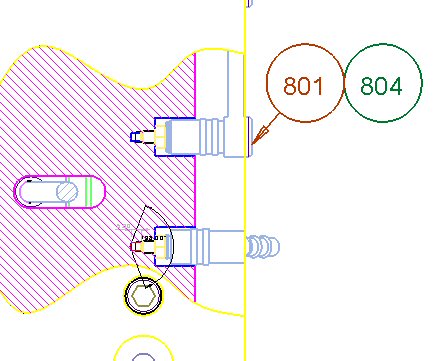
- Create the following ID number:
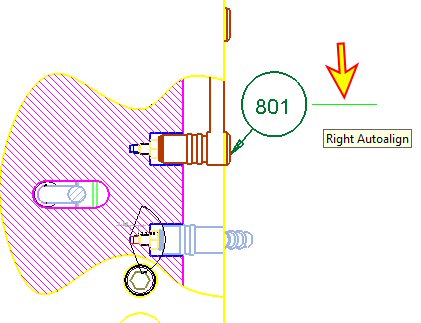
- While still in Edit mode, click on the Right Autoalign option.
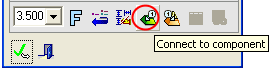
- Click the Connect to Component buttonConnect to Component button.
- Click on the Plug shown below:
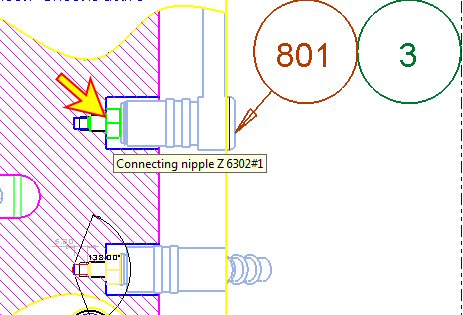
- Apply this selection and exit the ID Number dialog.
- Save your progress.
