Attachment
Extract
-
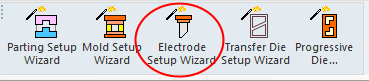
Click Electrode Setup WizardElectrode Setup Wizard.
-
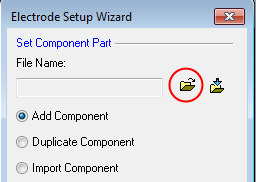
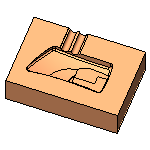
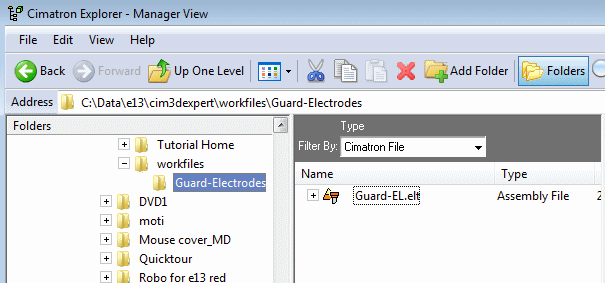
Click Open FileOpen File and select the Guard.elt part located in the following folder:
-
In the Wizard, mark the Create New Folder checkbox and click OK.
Set the folder location with the Browse Folder buttonBrowse Folder button
 .
.
-
A new folder has now been created in Cimatron Explorer.
-
Select Extract Electrode from the Electrode Guide on the right hand side of the screen to create a new electrode.
-
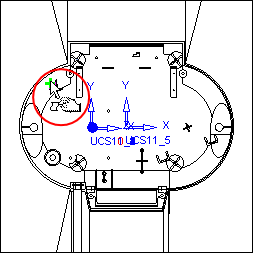
Click on the area shown in the following image.
-
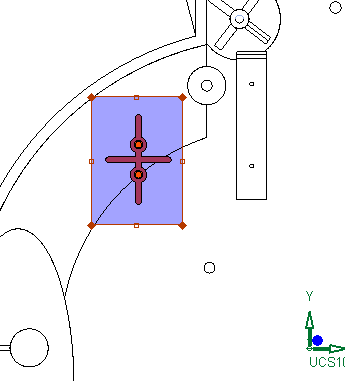
Edit the rectangle so it appears over the part as follows:
-
Click the Middle Mouse Button to attach the faces to the electrode.
-
Click Fit To SelectionFit To Selection
 .
. -
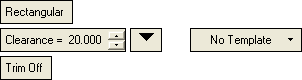
Set the parameters as they appear in the following image.
Deselect the small face indicated by the arrow.
Click OK.