Insert Picture
We'll now add the picture of the part and a logo to the drawing.
- Click Sheets > Tools > Insert Picture.
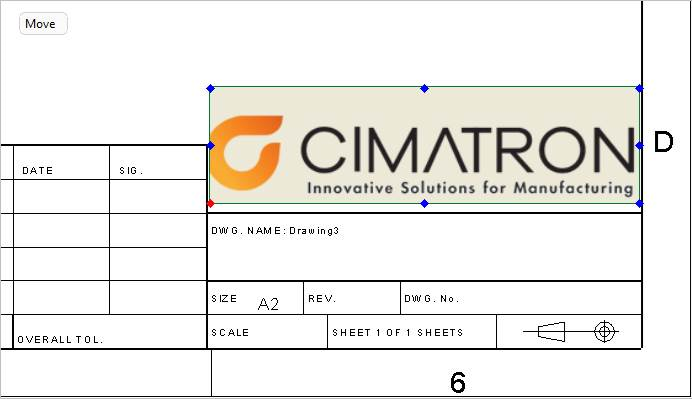
- Select the logo.jpg file located in the following folder:
\\Cimatron_Documents\Tutorials\Cimatron_2025.0_Workfiles\Design - Place the picture in the lower-right corner of the frame in the upper field.
- To move the picture, select one of the eight hotspots and drag it.
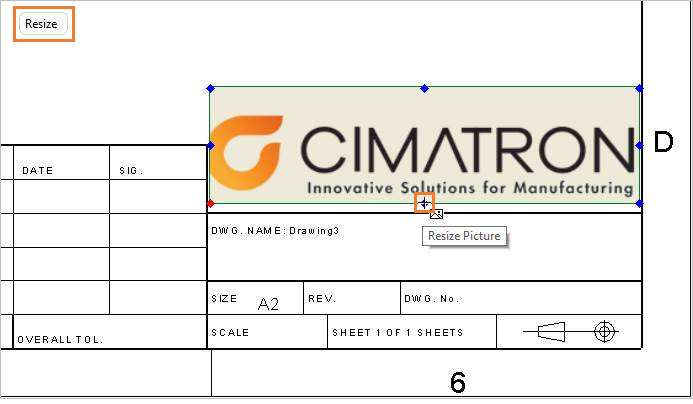
- To resize the picture, click the Move toggle button. The status changes to Resize. Now drag one of the corner hot spots to resize the picture.
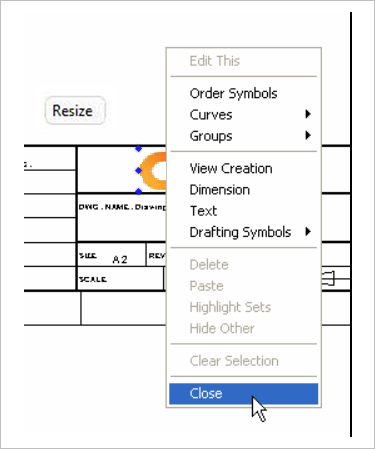
- Right-click and click CloseClose to exit the function.
- Insert the picture of the part (clip.jpg) into the drawing.
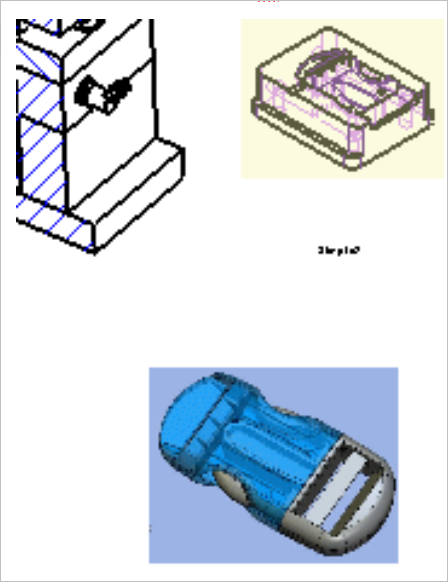
Because the pictures are embedded, there is no association between the original picture and the embedded picture. This means that changes to the original picture will not be incorporated in the drawing, frame, or template containing the embedded picture.
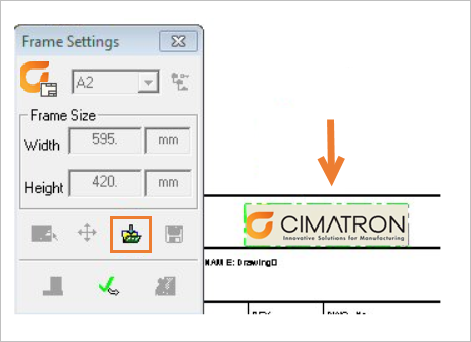
The .jpg file can be saved into template and frameframe formats.Via the Frame Settings dialog box (insert entity from the sheet).
- Save the file.
