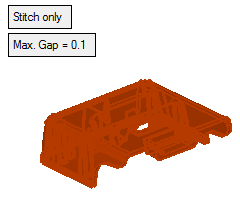
Interference Check
The Interference Check function assists users in detecting mistakes. The tool supplies visual information of the geometries that are involved in the interference so that users can easily take the necessary action to fix the problems.
New Interference Check
-
Unpack the interference.ctf file located in the following folder:
-
Load the MD_MD.elt file.
-
Select the Analysis > Interference Check > New Interference Check option.
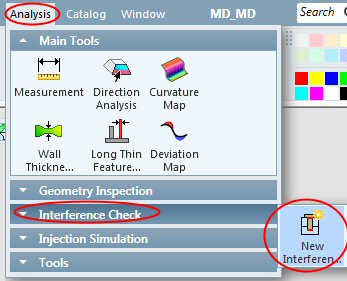
The New Interference Check option enables users to check between any two groups in the assembly or between items of a selected group.
-
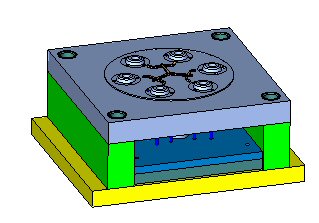
Hide the MD_MD_FixedMD_MD_Fixed side.

-
Select all the displayed components as input for the first group and Exit.
-
Click the Filter Component Filter Component
 button and select the fixed sideselect the fixed side as the second group.
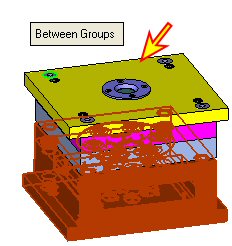
-
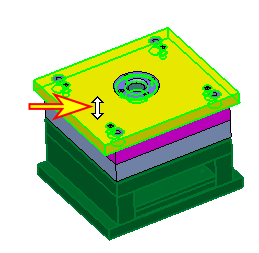
Show the fixed side. Select the Filter Component icon. Hold the cursor over one of the components of the fixed side, but do not select it. After a few seconds, the cursor changes to a double arrow.
-
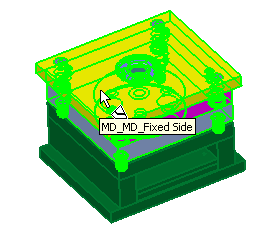
Hold the left mouse button, and move the cursor until the option of the whole assembly is highlighted.
-
Release the left mouse button to select the entire fixed side.
-
-
Click OK.
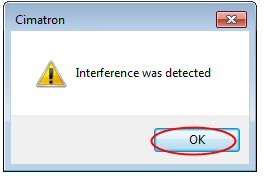
A dialog notifying you of any detected interference is displayed.
-
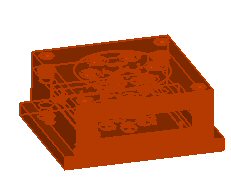
Click OK. The interference parts are highlighted with red boundaries.
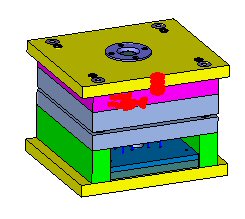
Two interference areas were detected: