|
|
Remaining Stock and Excessive Material
-
Turn on the Remaining Stock option.
-
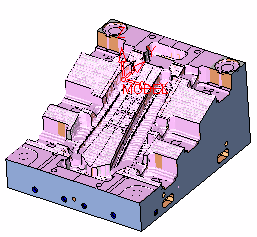
Zoom-in to the area marked with the RED circle in the following image.
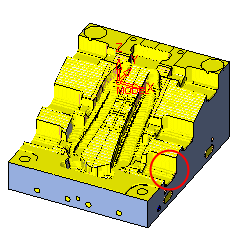
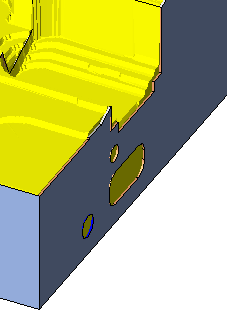
-
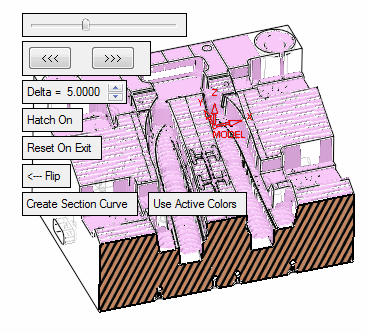
Enter the dynamic section to see the section of the part and the remaining stock.
If you do not see the section, click the Flip button.
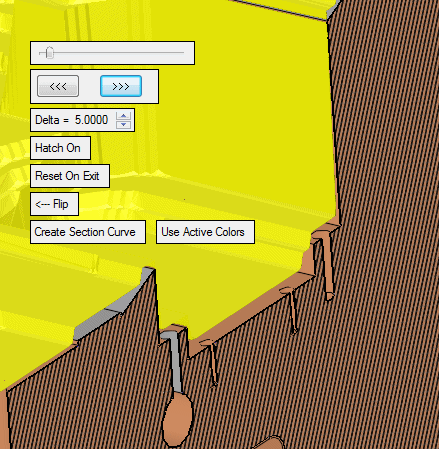
-
Turn on the Excessive MaterialExcessive Material
 option.
-
Toggle the model to Wireframe display.

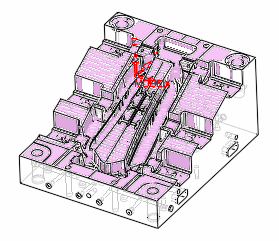
The Excessive Material option only shows the stock that is thicker than the desired offset defined by the procedure’s surface offset. It displays those areas where the cutter could not reach (due to the holder or cutter being too big).
-
Use the Dynamic Section tool.
Observe the large amount of remaining material in the two slides in the center of the core.