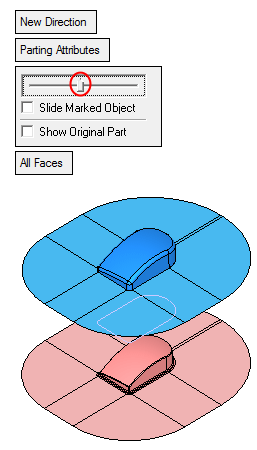
Step 6 - Create Parting Faces
-
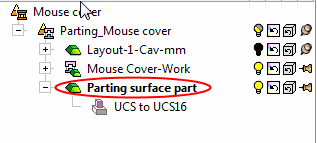
Activate the Parting Surface Part by double-clicking it or by right-clicking and selecting the Activate Component option.
-
Click Parting Guide > Parting Surfaces > External Parting Surface.
-
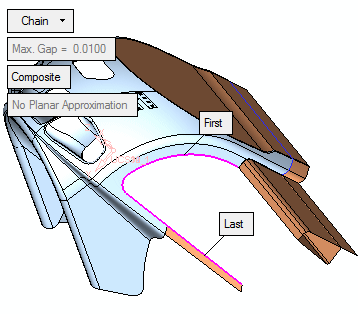
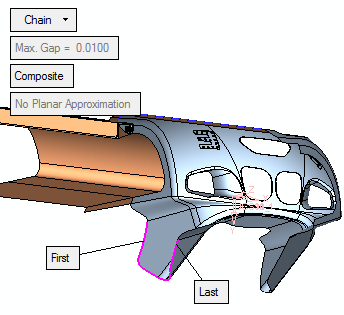
Verify that the parting curve created is picked.
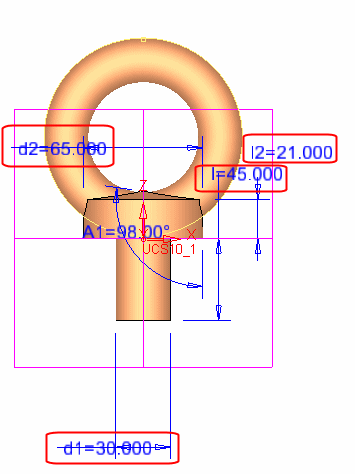
Change the width of the parting curve to 100 as shown below:
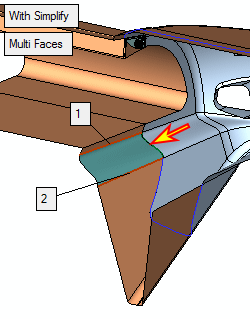
-
Click OK in the Feature Guide.
-
Click Parting > Parting Attributes.
-
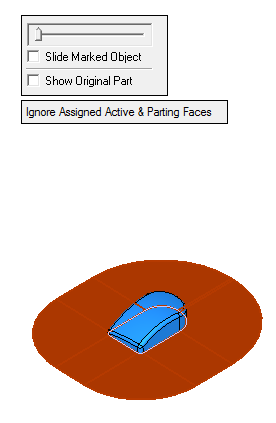
Show the Cavity set.
-
Select all faces.

-
Click MMB (middle mouse button) to Exit and move to the next required step.
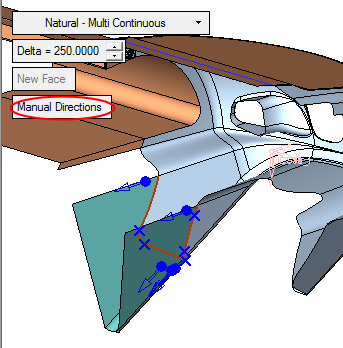
Accept the default Automatic Attachment option.
-
Click OK.