License Manager - Server Side: Cimatron
The License Manager dialog (invoked from the License Server Monitor) is displayed showing the client computer's installed Cimatron software.
The License Manager is a tool to manage your license. You can either view your license, set your local license or connect to your server license (setting its name or IP).
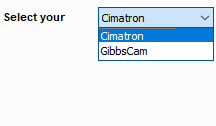
The License Manager that is displayed depends on your product. From the product drop-down list, select the product whose License Manager dialog is to be displayed.
|
|
Select a product from the drop-down list, click Activate and then click the Refresh button. |
Important: This Licensing method is no longer used by Cimatron. This information is provided for reference only. For Cimatron v2026SP2 and above, see Licensing Cimatron.
The following dialog is displayed for Cimatron software (after activating the license).
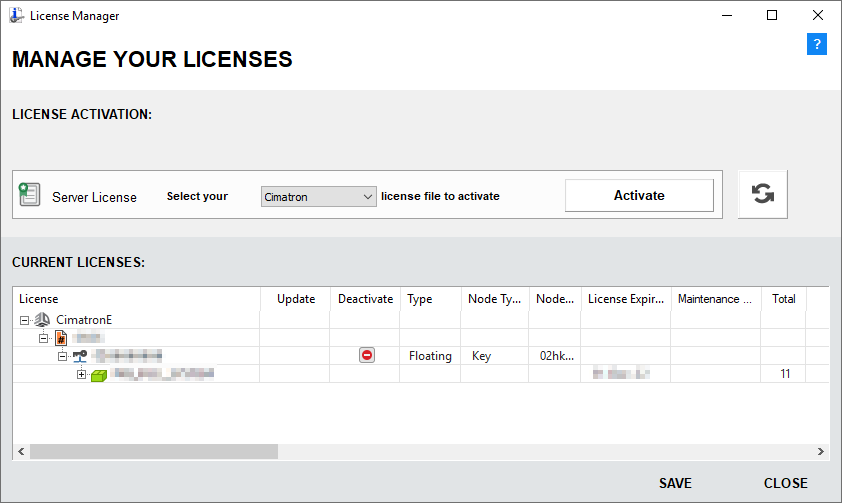
See the explanation for the Dialog Options and Dialog Buttons below.
Dialog Options
The following contents are displayed in this License Manager dialog:
- License File Location:
Server License:
Select your <product> license file to activateSelect a product from the drop-down list, click the Activate button and browse to the license file folder containing your license file(s) received from your Provider or Reseller - see Get Node IDs.
When finished, click the Refresh icon. -
License Display Area:
Displays the licenses and license contents according to the previously selected parameters.
Licenses displayed in red are invalid licenses that have expired or that do not match the Node ID of your protection device.
-
Deactivate
After a license is activated, a Deactivate button
 is displayed in the Deactivate column of the license in the License Manager dialog. To deactivate a license, click the relevant Deactivate button .
 -
In Use Column
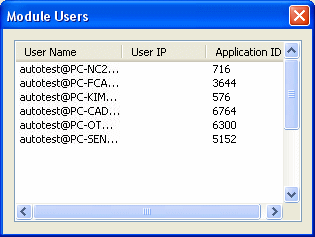
The In Use column shows the number of packages or modules that are currently grabbed, out of the total available. To retrieve additional information regarding these grabbed packages or modules, right-click on the appropriate row to display the Module Users dialog which shows the list of the user and PC names.
Dialog Buttons
The following buttons appear in the License Manager dialog:
|
|
Help: Opens the Help. |
|
|
Refresh View: Refreshes the dialog contents after you have changed a setting. |
|
Save |
Save Settings: Saves the current dialog settings. |
|
Close |
Closes the License Manager dialog. |


Note: For more on licensing, contact your Provider or Reseller.