Great enhancements with Cimatron’s New Licensing System
|
|
Cimatron is launching a new licensing system, powered by one of the largest software licensing firms (Thales), offering great new features and enhancements.
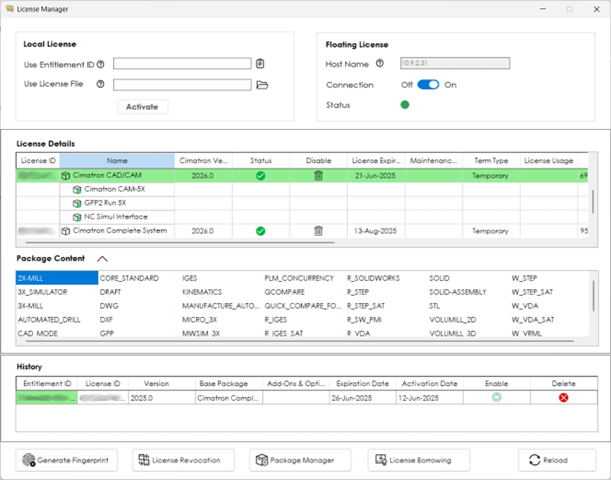
We strive to bring you the newest capabilities available in software licensing. To ensure you find this new system easy to use, we have designed the new License Manager to look and operate in a similar way to the previous one. For example, the License Manager is still launched from the Licensing tab on the Cimatron Control Panel, as it always did.
|
 |
|
The new License Manager is very similar to the previous one to ensure a smooth transition.
|
|
The new capabilities include;
- Key based activation, which removes the need for you to provide us with a Node ID or any other information about your computer when getting the license.
- Borrowing a license from the license server for off-line work or to bind it to your machine for a defined duration.
- Revocation and reactivation of a license without assistance from Cimatron when you need to move it between computers.
|
Activating a license
|
|
When you purchase Cimatron, you are issued with an Entitlement ID (EID). As the name suggests, this ID contains the details of your purchase, and is be used to activate the license and make it your own). The EID is a string of 32 characters.
- Activation is easy if you purchase a license for a dongle; When you plug the dongle into your computer and open the License Manager, the EID is automatically added to the Use Entitlement ID field.
- If you purchase a license for your computer, you will receive an email containing the Entitlement ID, which you can copy and paste into the Use Entitlement ID field.
When you have selected your EID, click Activate and the license will appear in the License Details pane.
Existing users will see the License Details list is very similar to the table of licenses we had in previous versions and shows details about the content of your license. A full list of modules is available in the Package Content pane.
Cimatron recognises that in rare cases you may need to activate a license using a license file (normally if you do not grant internet access) – Activation is still possible using a license file we provide, which you can load with the Use License File field.
|
Additional tools and options
|
- Connection to a License Server – if your company has a License Server, connecting to it works exactly the same as ever – enter the Host ID in the relevant field, and connect.
- History - If you don’t need a license anymore, open the License Manager and find it in the License Details list. Click the trash bin icon in the Disable column and it will be disabled. However, it will no longer disappear. Instead, it goes into the History pane, so you can click the Enable button to re-enable it at any time (providing it has not expired).
- License Revocation – You can revoke licenses assigned to computers (rather than dongles). While dongles may be moved freely between computers, computer-locked licenses cannot. Revocation provides some self administration of licensing by allowing you to move computer-locked licenses between computers without contacting Cimatron.
Revoking a license means it goes back to the entitlement pool, and can be re-activated later on another computer, just as you would activate another Entitlement ID (EID). Note that this operation only applies to new licenses delivered through the new licensing system, licenses upgraded from the previous system cannot be revoked and moved between computers independently.
These licenses can only be moved to another computer by contacting your Cimatron reseller and getting a new license file (or EID).
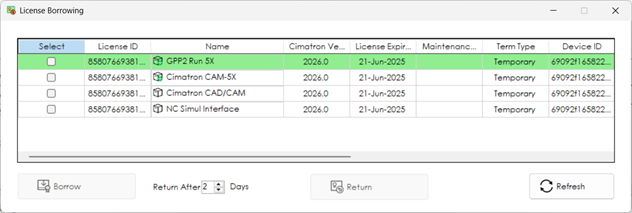
- License Borrowing – If your company has a license server, you may now borrow a license from the server and make it your own for a defined duration. This is useful if you want to work offline (whenever you are not connected to the server), or if you want to lock a certain license so that others cannot grab it by mistake and prevent you using it.
When borrowing the license, you state the duration (in days) and which license exactly you wish to borrow.
This option is only available if your license server administrator has allowed it. The administrator also sets the maximal number of days allowed for each reservation.
A borrowed license will be returned to the server automatically when the reservation expires. You may also return the license manually before that time by opening the same tool and clicking the Return button.
|
 |
|
The License Borrowing dialog.
|
- Generate Fingerprint – A fingerprint is an identifier for your device (either a computer or a dongle). Your device fingerprint can be useful for the creation of dedicated License Files for your device. This is usually required for offline sites.
|
Managing a License Server
|
|
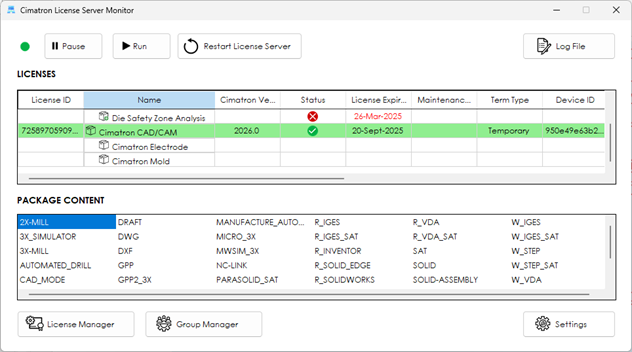
The License Server is a separate installation, similar to how it was done before. After you install it, you can run the Cimatron License Server Monitor. The Monitor shows the existing license details, enables you to pause and run the server service, view the log file, and manage licenses and groups of users.
The Settings button opens a dialog that allows you to enable and disable license borrowing and set the maximal duration of borrowing.
|
 |
|
The new Cimatron License Server Monitor
|