Cimatron Control Panel > Licensing


Access: Open this function from one of the following locations:
Cimatron Control Panel: Select Start > All Programs > Cimatron > Cimatron Control Panel.
Select Licensing.
Important: This Licensing method is no longer used by Cimatron. This information is provided for reference only. For Cimatron v2026SP2 and above, see Licensing Cimatron.
Run various license-related applications from the Licensing tab of the Cimatron Control Panel.
A flexible licensing system enables you to make the most efficient use of your software licenses. The system supports two types of licenses; Local-Node License (also called a Node-Locked or Standalone license) and Floating License (also called a Network license). A Local-Node and Floating license can be used together; this is called Mixed Mode.
Click the buttons on the left side of the dialog image for a description of each area.
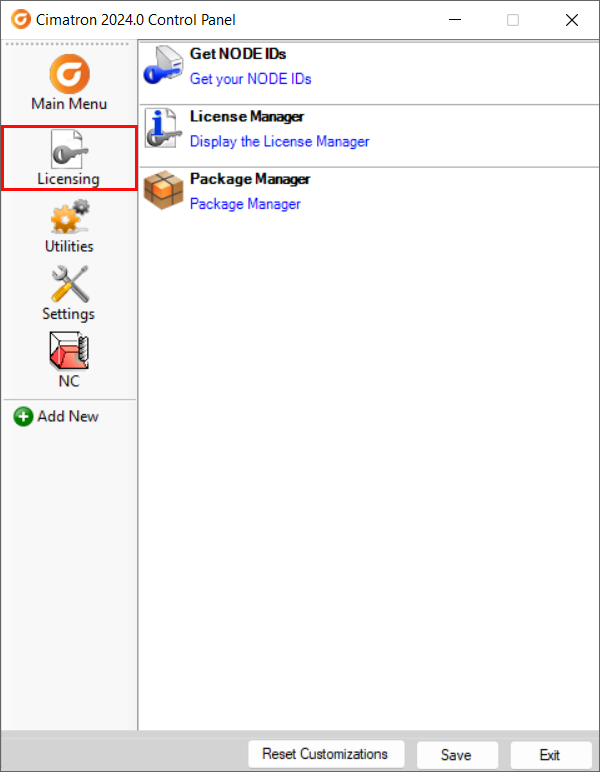
The licensing process
To use this product, you require a license file. The license file is sent to you by your local Provider or Reseller. This license is issued for a specific computer and Hasp number.
The procedure for acquiring and setting up the license is detailed below.
To receive the license file, you first have to run the Get Node IDs utility. This utility creates a text file that should be sent to your Provider or Reseller. This text file contains data about your computer required by the system to issue you your license file. In return, you will receive your license file.
Extract and save the license file on the computer from which the Node IDs utility was run.
The License Manager is a tool to manage your license. You can either view your license, set your local license or connect to your server license (setting its name or IP).
The License Manager defines the path to the local license file (received from your Provider or Reseller), so that your product can verify the license, and also displays license information per product and version number.
Once the license is defined, use the Package Manager to select a Base Package in order to work.
Any valid license must contain at least one base package. Select a base package from the list of available base packages displayed in the Package Manager dialog.
If there is only one Base Package available in all the valid licenses, it is automatically selected and the Package Manager dialog is not displayed. However, if there is more than one Base Package available for you, the Package Manager is displayed listing the available Packages and you are required to select one.
Once you have selected a Base Package, it is automatically loaded the next time you run the product, unless all the available licenses of this package are already grabbed by other users. In this case, the system will require you to select a different Base Package, if one is available (if no Base Package is available, the Package Manager dialog is displayed empty).
See Licensing Troubleshooting.
Note: For additional information on licensing:
Contact your Provider or Reseller.
When you have finished using the Control Panel, select the appropriate approval option below.
Approval Options
The following options appear at the bottom of the Cimatron Control Panel:
Reset Customizations |
Reset all customizations to the Control Panel. This resets the Control Panel back to the default settings. |
Save |
Save all customizations. |
Exit |
Exit the Control Panel. If you have customized the Control Panel and pressed Exit before saving, you are prompted to save your changes before exiting. |