Simulator Display  : Component Display

Access: Select one of the following methods to access the Simulator:
-
Select NC Process > Simulation > Machining Simulation from the menu bar.
-
Press the
 button from
the NC Guide.
button from
the NC Guide. -
Right-click on an item in the Process Manager and select Simulation - Machining from the popup menu.
-
Select the Simulation button in the Job Manager.
The
Machining Simulation
dialog is displayed. Set the required parameters and press
OK
 to display the Simulator.
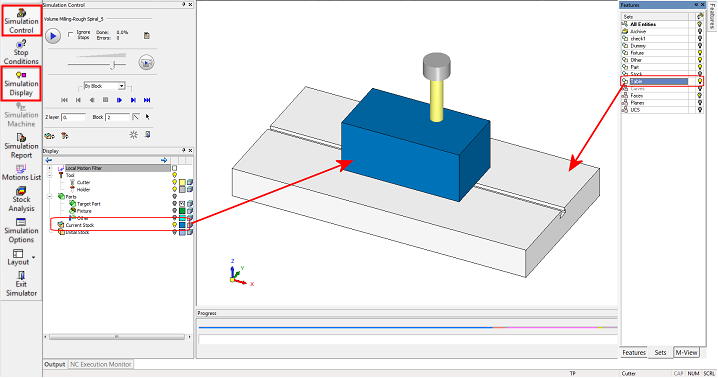
When the Simulator loads, the displayed components will keep the exact same orientation and zoom. Although all part components were selected to be sent to the simulator separately, none of them is shown when the simulator loads. Only the stock is shown. This is the intended behavior. The part components can be shown at will, using the display dialog control.
Other geometry which exists in the NC file and is not defined as part or stock will be shown in the Simulator window as is. For example, the geometry defined in the set Table.
Note that the Hide/Show set capability in the Simulator is blocked. The reason for that is possible contradiction between sets and the setting in the Simulation Display dialog. To hide this type of 'free' geometry element, use the regular Hide/Show tools.
All Zoom, Pan and Rotate (ZPR) controls in the Simulator window behave exactly the same as in all other applications.