Simulator Display  : Docking & Undocking Dialogs

Access: Select one of the following methods to access the Simulator:
-
Select NC Process > Simulation > Machining Simulation from the menu bar.
-
Press the
 button from
the NC Guide.
button from
the NC Guide. -
Right-click on an item in the Process Manager and select Simulation - Machining from the popup menu.
-
Select the Simulation button in the Job Manager.
The
Machining Simulation
dialog is displayed. Set the required parameters and press
OK
 to display the Simulator.
On the left of the simulator there is the Simulator Guide. It is used to open/close the various dialogs used while simulating, such as the Simulation Control and the Progress Bar seen in the image below.
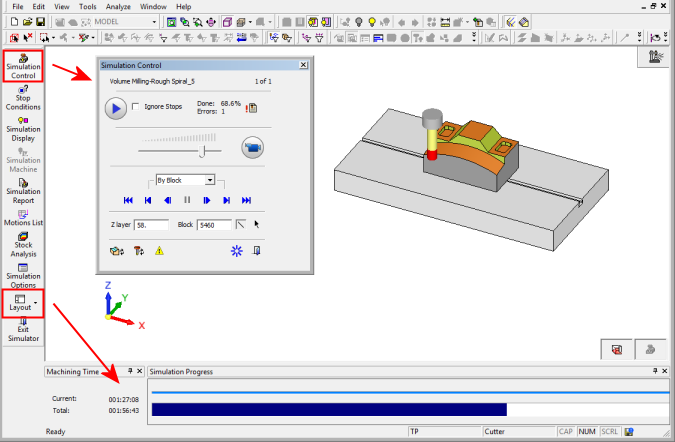
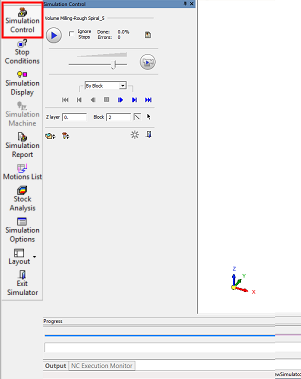
The default state of the various simulation dialogs is 'floating'. The Machining Time and Progress Bar dialogs are the exception; they are docked to the bottom of the screen. If required, the Simulation dialogs can be docked to the side of the Simulation window. In the example below, the Simulation Control window header is clicked and dragged to the left in order to dock it.
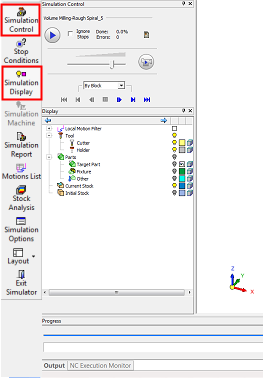
Click the Simulation Display icon in the Simulator Guide to open the Display dialog. Click its header and drag it to the bottom of the previously docked Simulation Control dialog. It is docked at the bottom.
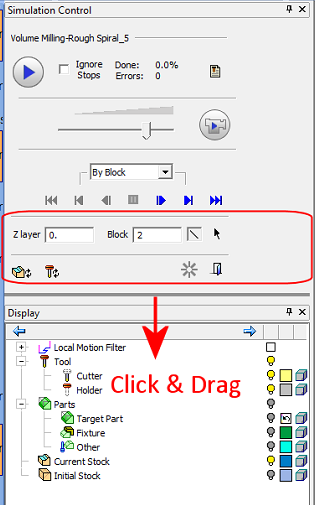
If required, click the border between the 2 docked dialogs and drag it downwards, in order to expose the lower icons of the Simulation Control dialog.
In addition, 'floating' dialogs can be docked within each other. In example below, the Display, Report and Simulation Control 'floating' dialogs are docked to each other.
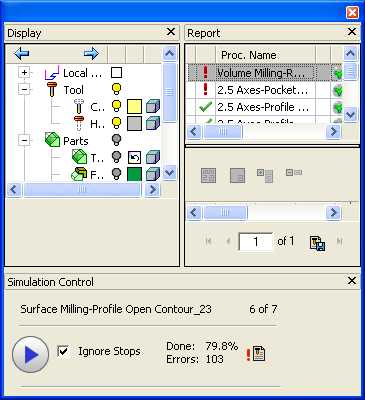
Docking any of the dialogs is an option and not a requirement. At any moment it is possible to restore the default setting, by clicking the Layout > Reset Simulation Layout icon in the Simulator Guide.