Simulator Display  : Simulation

Access: Select one of the following methods to access the Simulator:
-
Select NC Process > Simulation > Machining Simulation from the menu bar.
-
Press the
 button from
the NC Guide.
button from
the NC Guide. -
Right-click on an item in the Process Manager and select Simulation - Machining from the popup menu.
-
Select the Simulation button in the Job Manager.
The
Machining Simulation
dialog is displayed. Set the required parameters and press
OK
 to display the Simulator.
In the Simulation Control dialog, when the Play button is pressed to activate the simulation, the following occurs:
-
The Fast Forward (FF) button
 changes to Pause
  . Clicking on it will pause the simulation.
 -
The Progress bar advances as the simulation continues.
-
Neither tool movements nor material removal is seen on screen.
-
Tool(s) and stock disappear.
-
The Target part, Fixture and Other geometry elements are shown instead of the stock.
-
Other 'free' geometry display is left intact.
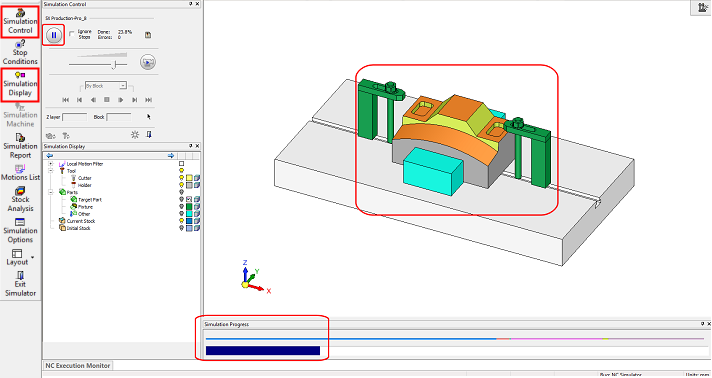
While the simulation, runs the simulator engine computes the material removal and checks for any possible gouges or collisions.
Results are shown when the simulation is stopped (for any reason). The image below shows what happens when the simulation suddenly stops somewhere along the first simulated procedure, as seen in the progress bar; the tool and stock have reappeared. The stock now shows its status at the current point.
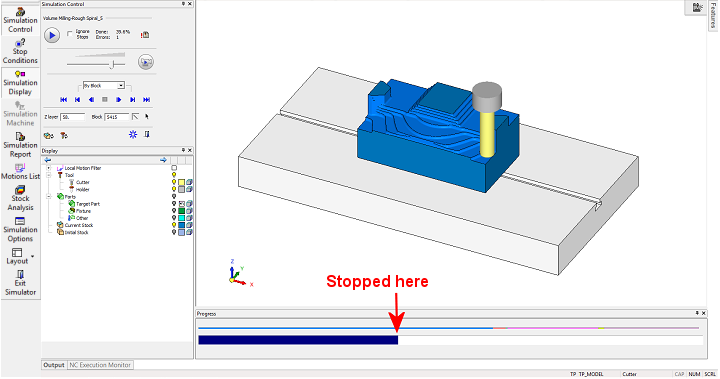
If the simulation stops due to an 'Error' Stop Condition, it is important to see where it occurred and what the exact details are. To do this, click on the Simulation Report icon.
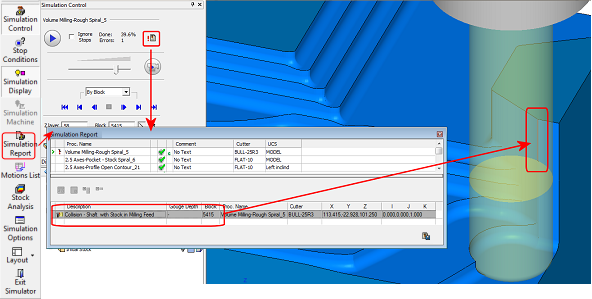
The Report dialog opens and indeed it shows that in block #5415 the shaft collides with the stock in feed.
Notice that the Simulation Report icon on the Simulator Guide is also highlighted. The Report dialog can be shown or hidden by clicking this icon.