|
|
Activate/Deactivate
Solids (Add/New/Remove) - Activate - Step 1
Configure the Preferences to set the following colors for Active Object, Curves, and Objects.
-
Open a New Part File.
-
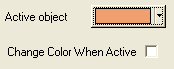
Through the Preferences menu, change the Active Object color to Orange and the Default Object color to Cyan.
Select Tools > Preferences > Modeling > Color > Active object.
Active Object
Active Part and Preview
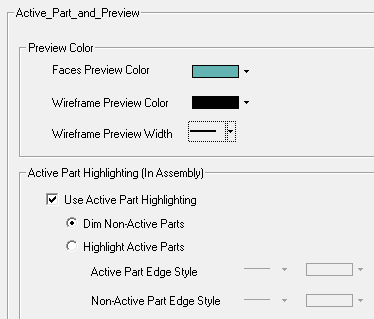
If required, set the Dim the Color of Non-Active Parts button (by default, this option is not selected). Select this parameter to make the curves of dimmed parts less visible.
When unselected, no color change occurs when activating parts. In such cases, use the Assembly Tree to determine which components are active. -
From the Menu bar, click the Active Style Setting buttonActive Style Setting button
 .
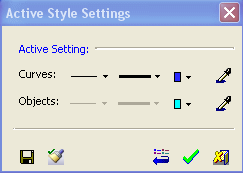
.The Active Style Setting dialog is displayed
Through this dialog you may set the active style for any curve or face/object. For curves, this means the active Line Width, Line Style (solid line, dashed line, etc.), and line Color. For objects, this means the active Color of a face/object.
-
Set the style as shown in the dialog shown below:
-
Click OK.
-
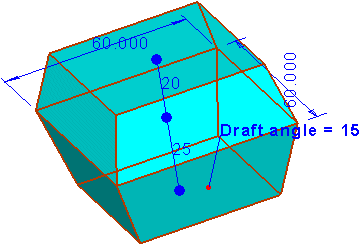
Now create a solid object with the dimensions shown below:
-
Create a 60 x 60 box in the Sketcher.
-
Extrude this box using:
-
Delta: Both Sides
-
Delta = 20
-
Opposite Delta = 25
-
Draft Angle = 15 (Inside)
-
-


