|
|
Basic Analysis: Create Groups
Create Groups - Step 1
-
Prepare the assembly—First, create the groups.
The groups are created in the Groups Tree.
The Groups Tree contains motion simulation groups of components. Each group represents a rigid body. The groups of components are fastened to each other in such a way that no relative movement can exist between members of the same group. Components included in a motion simulation group don't need to be members of the same sub-assembly. Components can be assigned to the same group regardless of their hierarchic position in the assembly tree.
The default colors of the motion simulation groups are defined in the Preferences. These colors can be displayed during simulation and are controlled in the Motion Simulation dialog. You can also define the colors and render mode locally for each component in the Group Tree. (These colors are coordinated with the assembly tree definitions and any change is applied to both trees.)
The Groups Tree structure is similar to that of the Assembly Tree; see Group Tree Popup Operations.
Initially, the Groups Tree contains the main assembly and the Unassigned group as shown below:
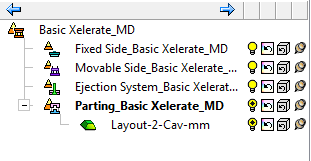
By default, all components in the assembly are initially located in this group in their original tree structure.
-
Expand the Unassigned group. The Unassigned group is a system group that cannot be deleted or its name changed.
Notice the right column. When Motion Simulation is open, an additional button column is displayed in the Groups Tree. Use this column of buttons to define whether a group or a component within a group should be ignored in the collision calculations.
When creating new groups, selected components will be added to them automatically. Components can also be added to the new groups by dragging them from the Unassigned group.
-
Right-click anywhere within the Groups Tree tab and select New Group from the popup menu.
-
Select the Guide Z181 component and drag it to the new group.
-
Select the Locking heel Z 1810 componentLocking heel Z 1810 component, right-click anywhere within the Groups Tree tab, and select New Group from the popup menu.
The selected component is automatically attached to the newly created group.
-
Repeat with the Slide Core Z181 so that 3 groups are created.
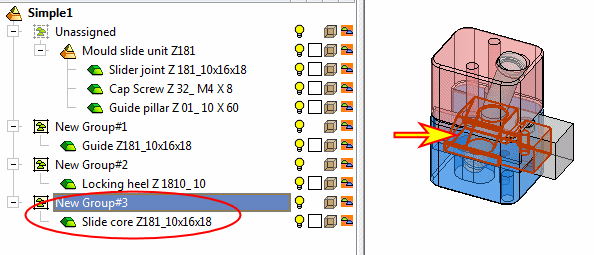
The tree is a logical tree, and you may move parts between groups regardless of their actual location in the assembly structure tree.


