|
|
Import and Export Cutter
-
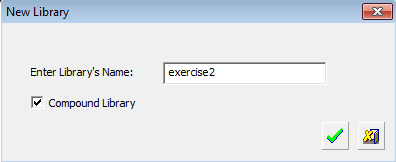
Create a new library.
-
Name the library Exercise2. Click OK.
-
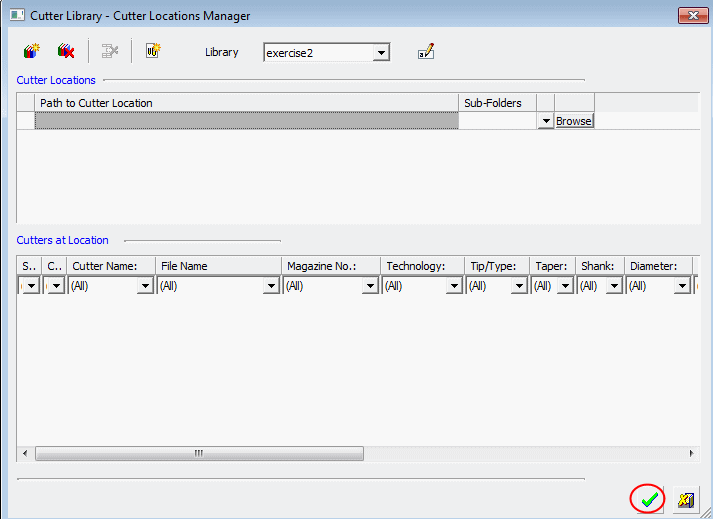
Do not select any files or location. Click OK.
-
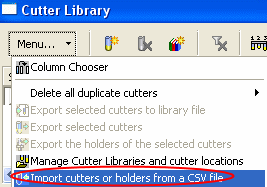
From the menu, select the Import Cutters or Holders from a CSV file option.
-
Select the Exercise2.csv file.
-
Because there are no .chl files previously created in this library, the system automatically opens the Create New CHL File dialog.
Name the new .chl file and click Create.
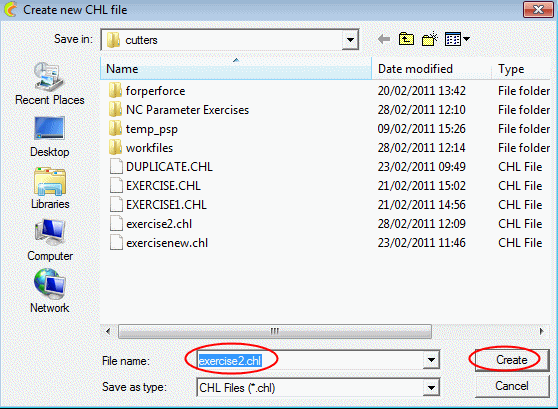
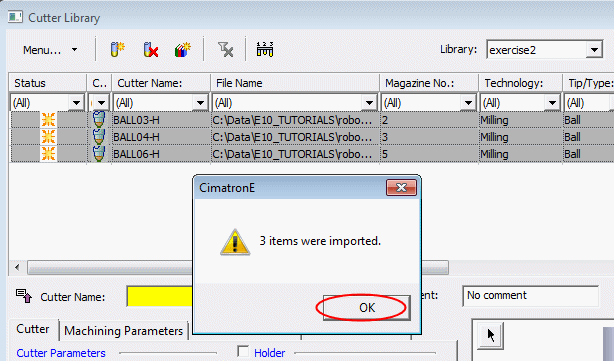
The three cutters from the .csv file were imported into the library (to the newly created .chl file). -
Click OK.
-
Import another .csv file, exercise2a.csv.

This time only one cutterone cutter was imported.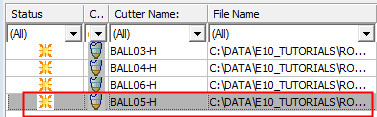
-
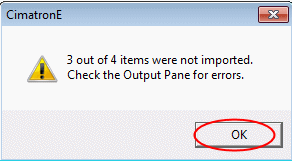
Inspect the message to check the output pane for errors. Click OK.
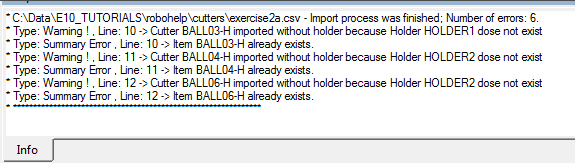
In the output pane, you can see that three cutters were not imported since these cutters already exist in the library.
-
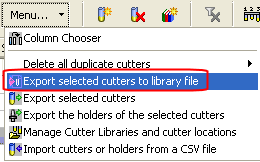
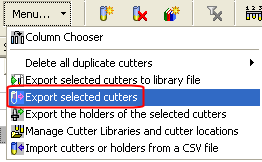
Export the four cutters to both .csvcsv and .chlchl files.
-
Exit the Cutter Library dialog.


