|
|
Delete All Duplicated Cutters
There are two ways to delete duplicated cutters in the library:
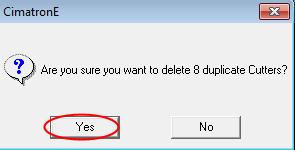
- Delete All Duplicate Cutters - (For the tutorial, do not use this option!) Automatically deletes repeated cutters in the current libraryrepeated cutters in the current library (only in the .chl files of the current library).
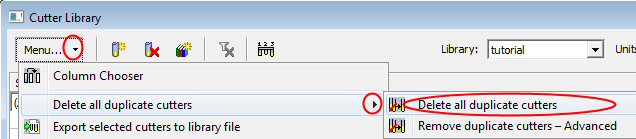
- Remove Duplicate Cutters - Advanced
-
From the Delete All Duplicate Cutters dropdown menu, select the option Remove Duplicate Cutters - Advanced.
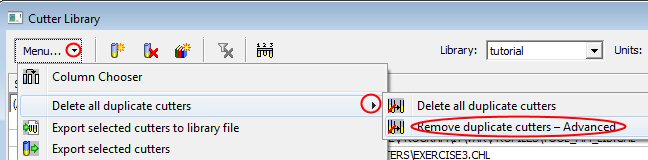
The Remove Duplicate Cutters dialog is displayed.
When the dialog opens, all groups of duplicate cutters are displayed and each group of identical cutters is highlighted for clarity in the Cutter Table of the dialog displayed in alternating shaded and unshaded rows.
-
We'll first deal with the BALL4-H cutter. Click one of the BALL4-H cutters.
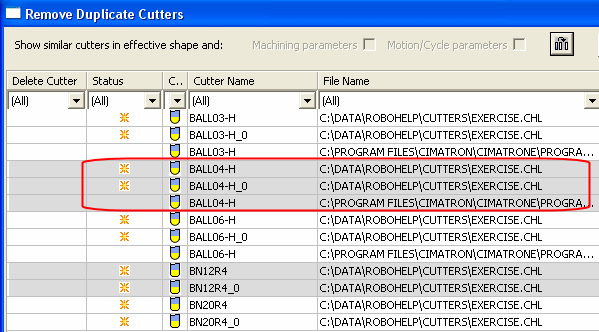
-
Select the cutters you wish to delete. Use the Ctrl key to select more than one cutter. Use the Select All or Clear SelectionSelect All or Clear Selection buttons if needed.
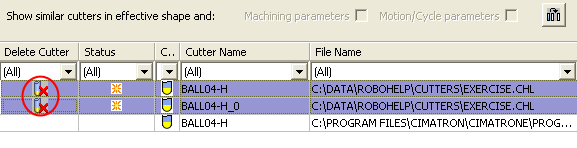
-
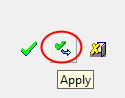
Click Apply to confirm the delete operation and to select the next cutter.
-
Do not delete any other cutters. Click the Cancel button.
-
Back in the Cutter Library dialog, click Cancel to exit the tool.
-
Select Yes to cancel the action.
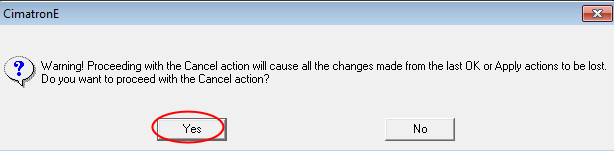
-


