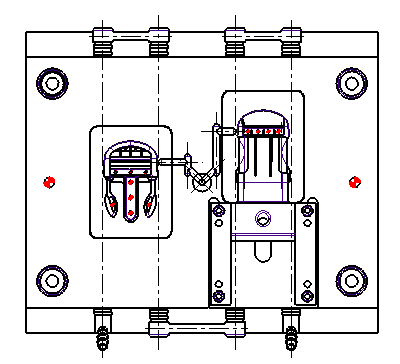
View Creation
Load
- Unpack the clip mold.ctf file located in the following folder:
\\Cimatron_Documents\Tutorials\Cimatron_2025.0_Workfiles\Design - Select the clip mold_MD.elt assembly document.
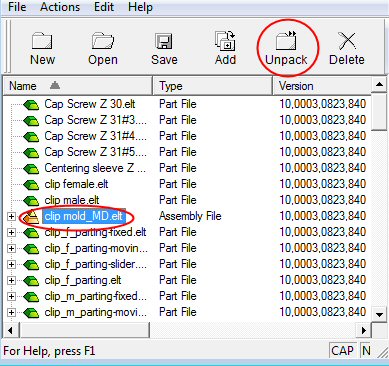
- Select a location on your computer where you would like the mold file stored.
- When the Unpack operation has completed, click OK in the dialog and open the Drafting applicationopen the Drafting application.
The Sheet1 sheet is active when you enter the drafting application because the Sketcher toolbar is always open.

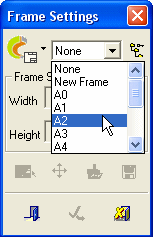
- Double-click on the frame icon in the Drafting tree on the left-hand side of the screen and select the A2 FrameA2 Frame.
- Open the View Creation dialog. From the Cimatron Explorer, select the clip mold_MD.elt assembly document.
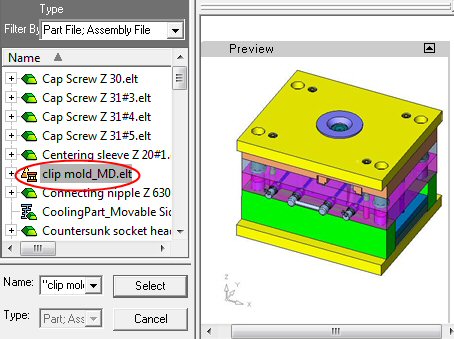
The catalog components keep their connections according to the relative path in which they were saved (C:\Cimatron\Catalogs). If the catalog components have been placed in another location, the Connection Status dialog appears.
- Click HERE to find out how to reconnect the catalog components to those found on your computer.
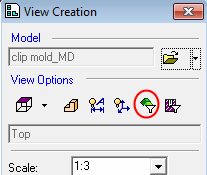
- Change the scale to 1:3. Click on the Part Filter buttonPart Filter button. Deselect the chaeckbox for the fixed side of the assembly.
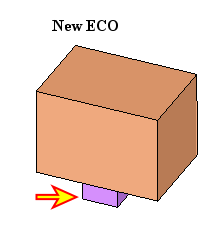
The Runner System part is not selected as the Visible in View optionVisible in View option has been deselected (prior to loading) in the Advanced tab in the Cimatron Explorer.
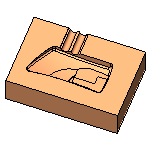
- Place the view in the top left corner of the frame.