|
|
Pick Point
-
Click the Go to Start button.
Cimatron displays the first step (in this case, layer) in the toolpath. The tool jumps to the first block in this layer.
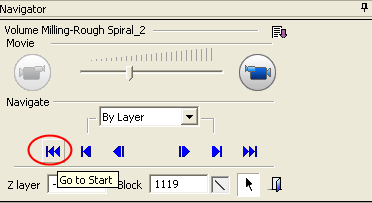
The Pick Point icon is enabled.
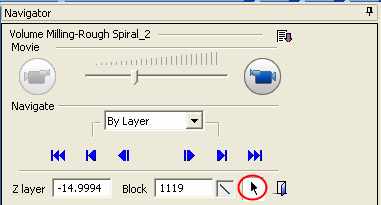
This enables users to pick any point from the display area (Close to Curve or End Point).
To eliminate one of the two options, click the FilterFilter button.
In some cases such as loading, the Motion Editor pick tool becomes deactivated for the benefit of Motion Editor pick purposes (Delete, Project, and so on).
Click the Pick Point icon to activate it.
You can also press Exit in the display area to exit the pick point tool. -
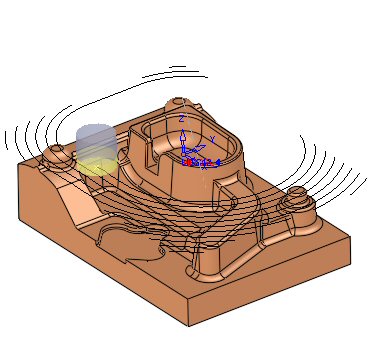
Pick a point to place the tool as indicated by the arrow in the foillowing image.
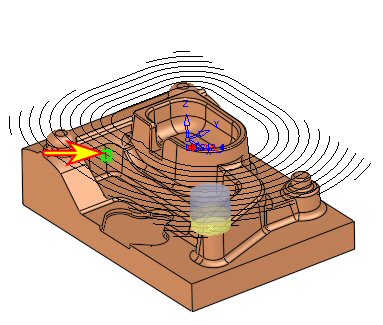
-
Change the Step type to By Block.
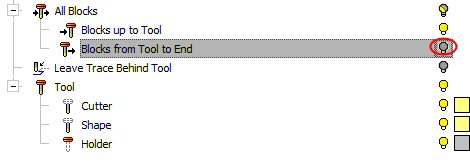
Click the Blocks from Tool to End bulb to switch it off.