|
|
Cutters: Cutters Overview
Cutter and Holder operations and database management can be categorized into three main levels:
- The Cutter and Holder database per NC document – The Cutter and Holders dialog displays the cutters and holders included in the currently open NC file.
- The Cutter and Holder library database defined on your computer:
- Cutter Library is a tool for managing cutter definitions. Cutter definitions can reside in one or more files, and the Cutter Library enables you to define libraries (collections) of one or more such files. Further information about cutter parameters can be found in the Cimatron Help.
- Holder Library is a tool for managing holder definitions. Holder definitions can reside in one or more files, and the Holder Library enables you to define libraries (collections) of one or more such files.
- Library Manager is a tool for managing the contents and location of libraries and is the highest hierarchical level of Cutter and Holder database control. This tool enables you to edit, add, or delete libraries.
Additional important terms:
-
CHL file is a cutters and holders file format where you can edit the contents’ parameters, unlike other formats such as .elt and .tpt, where you can only view the parameters.
-
CHL files that are located on different machines need the required permissions in order to be modified.
Cutters and Holders Table
In this chapter, we'll deal with cutters and holders of a specific NC document.
-
Open the Cutters Table.elt file.
-
Edit the R_Spiral_2 procedure.
-
Click the Cutters and Holders button in the procedure dialog.
-
Open the Cutters and Holders dialog. Either:
-
In Advanced mode, click the Cutters & Holders tab.

-
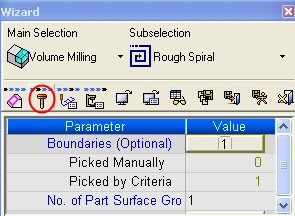
In Wizard mode, click the Cutter button.
The Cutters and Holders dialog is displayed.
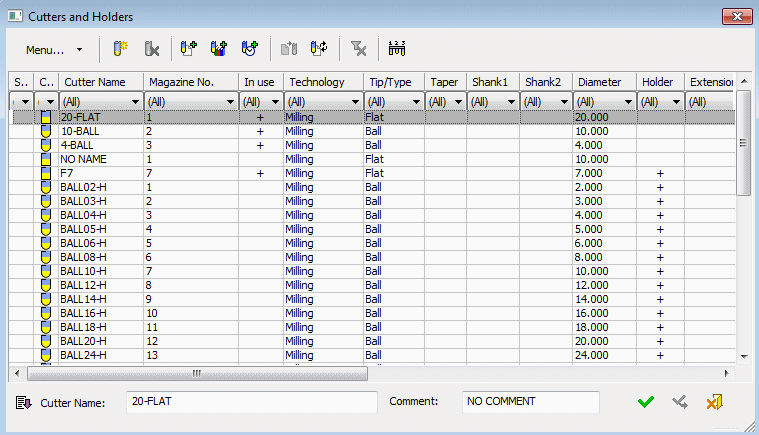
If the dialog opens in Select Only mode, click Full Dialog ModeFull Dialog Mode
 to edit the cutter.
Various operations can be performed using the operation buttons, such as Create and Delete Cutters, Export Cutters and Holders, Add Cutters from an .elt File, the Cutter Library, or recently used cutter list, etc.
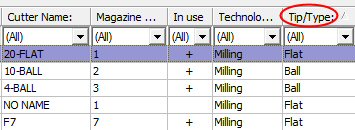
Notice the columns that display the cutters’ geometric and machine parameters. The table can be sorted according to any of the displayed columns.
-
-
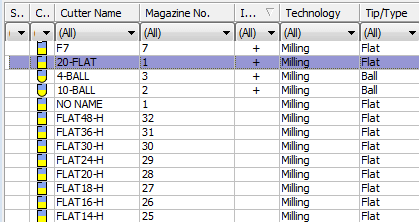
Double-click the Tip/Type column to sort it by type.
-
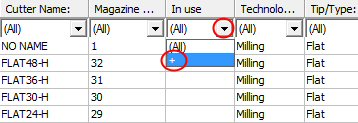
In the column filter, click the arrow button to display the cutters used in the procedures.