|
|
Work With Motions With Collision - Step 5
-
Activate the Rail Left Part.
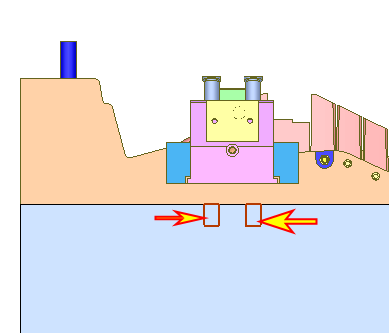
-
Suppress the last Extrude Remove feature.
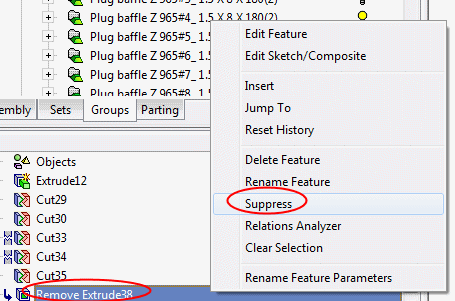
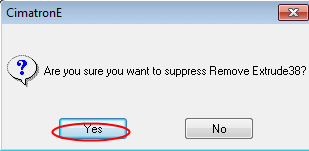
-
Save the file. Set a new range for calculation, 0 – 0.5. Right-click the range area and select Re-Calculate to recalculate the analysis.
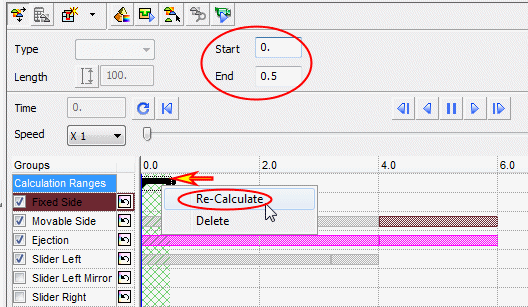
-
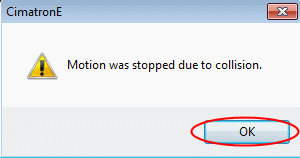
The motion stopped due to collision. Click OK.
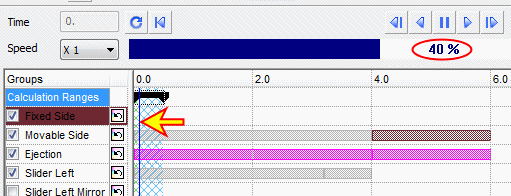
The vertical blue line highlighted in the image below shows the exact time of collision.
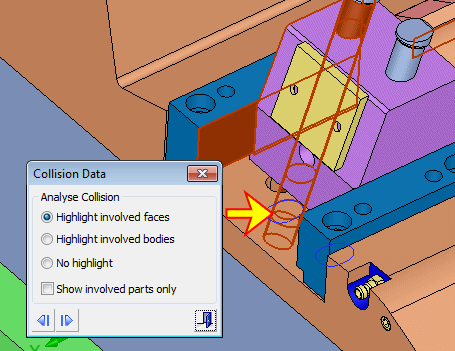
The collision data dialog appears. The involved parts are highlighted in red.
-
Exit the dialog.


