Help Overview
This Help provides general information about Cimatron and context-specific assistance (help for the current state of the application) which enables assistance without leaving the current context of your work. To access the help pages which reflect the current state of the Cimatron active window, press the F1 key.
Cimatron defaults to use the online help to ensure the latest updates are available. If you prefer you can switch to use the embedded help in Preferences > General > Help.
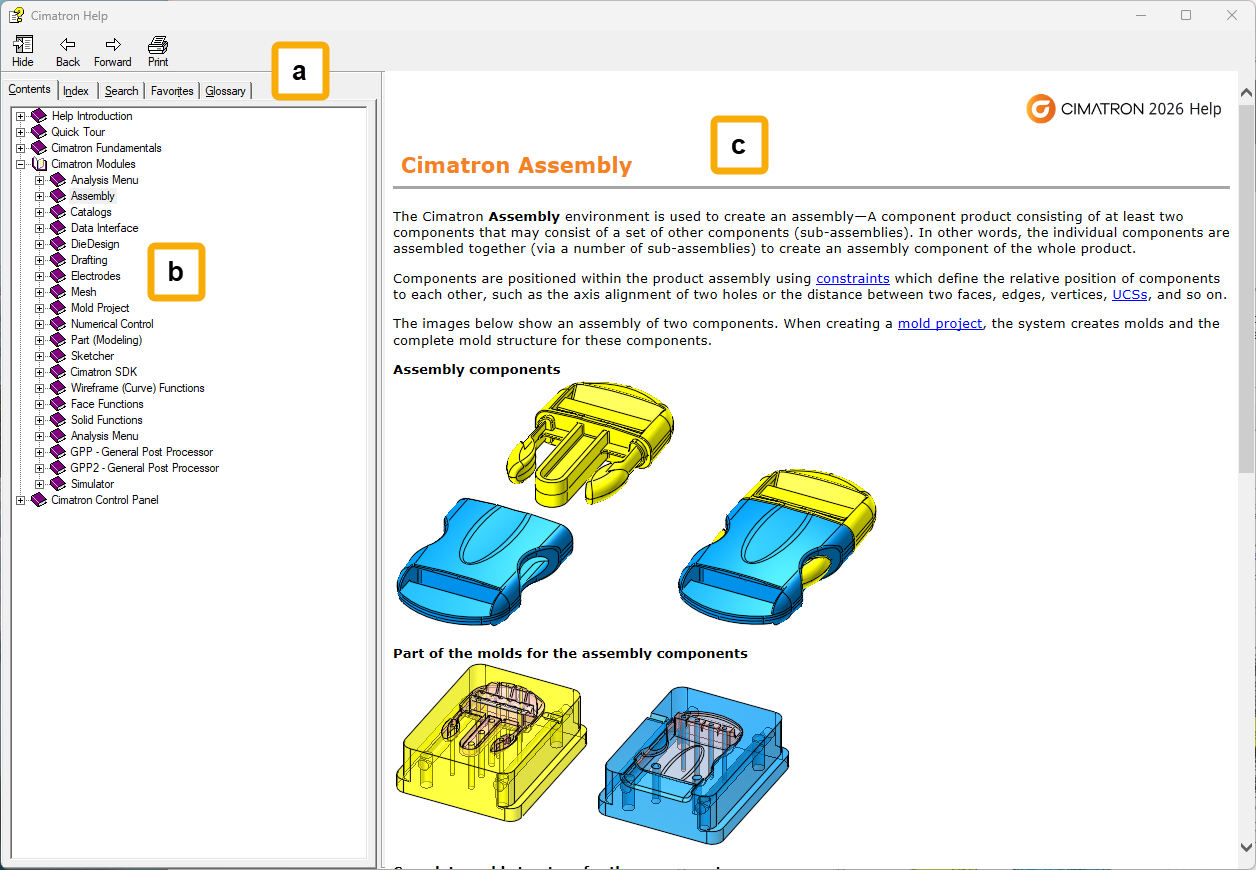
Both versions of the Cimatron Help feature a tri-pane display, including a navigation bar, contents and index area, and the help topic itself; for example:
|
Embedded Help |
Online Help |
|---|---|
 |
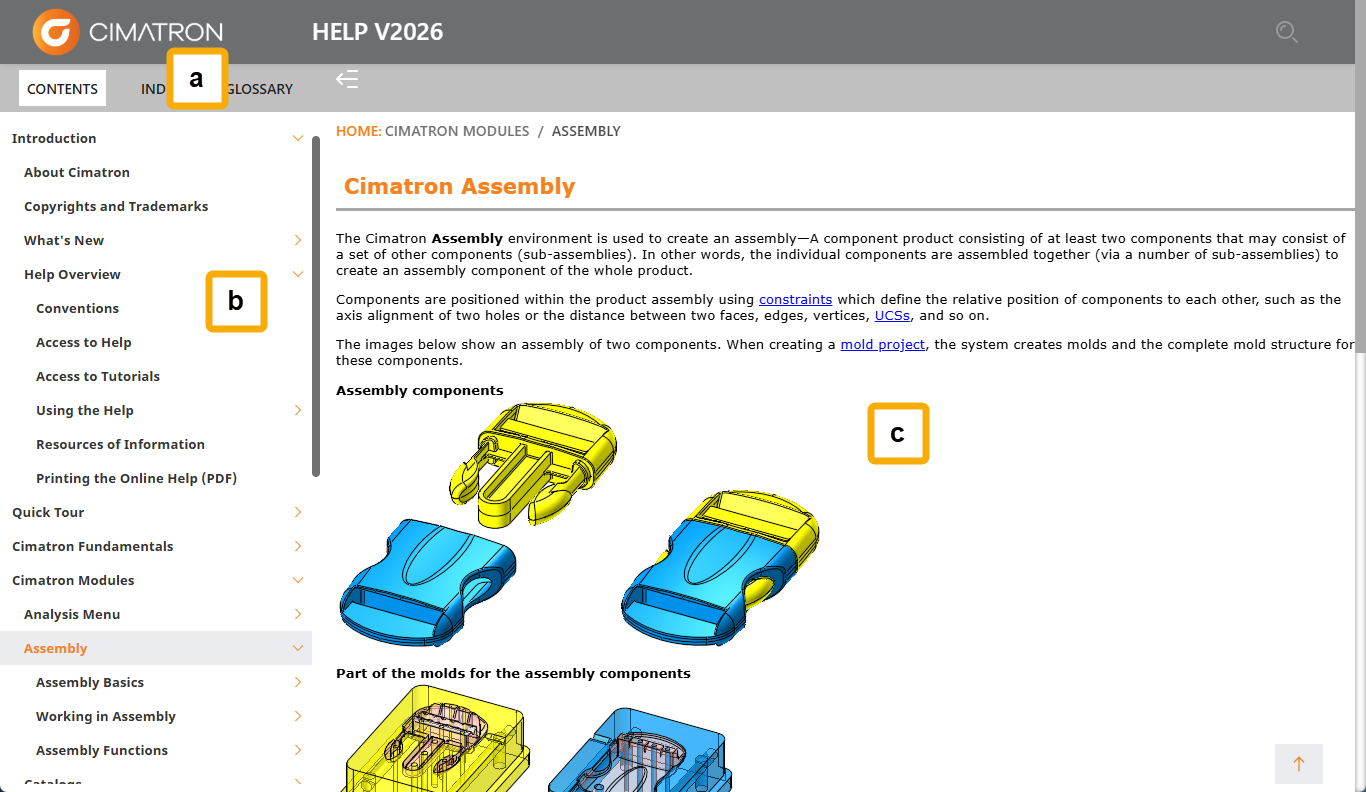 |
- Navigation Bar
- Contents, Index, Search, Favorites, and Glossary
- Help Topics
For an overview of the Help, such as the conventions used in the Help, how to access and use the Help, a list of other sources of information, etc., click the relevant link below. See also Integrated Help and User Support below.
|
Describes the conventions and buttons used in the Help. |
|
|
Lists the ways to access the help, as well as helpful hints for searching. |
|
|
Shows you how to access the Tutorials after installation. |
|
|
Shows you how to navigate the Help and find information. |
|
|
Lists sources of information to assist you with using Cimatron. |
|
|
The Cimatron GPP and GPP2 online Help files are also available as User Guides in PDF format. These provide another medium to view the Help and enable you to print hard copies of these applications. |
Integrated Help
The integrated Help system in Cimatron provides varying levels of assistance, before and after invoking a function. The assistance can be displayed in the following ways:
-
Toolbar/Menu Tooltips: Hover the mouse cursor over an icon in a toolbar or one of the dropdown menus to display a tooltip (together with a picture) that describes the functionality of the function. The tooltip pictures can be controlled in the Preferences (Preferences > General > Tooltips) to either hide or show them or to set a time delay.
-
Online Help: Access context-specific assistance (help for the current state of the application) by pressing the F1 key or by clicking the Help button within an open dialog box.
-
Function Prompts: After invoking a function, prompts are displayed for each step of the function in the lower left corner of the Cimatron window. These prompts provide hints for the operations required to complete the function.
User Support
If you have questions or issues to a service representative, contact your Cimatron Provider or Reseller for customer support.
Glossary contents not displayed in the Embedded Help?
This is because the HHActiveX.DLL file is not registered on your computer.
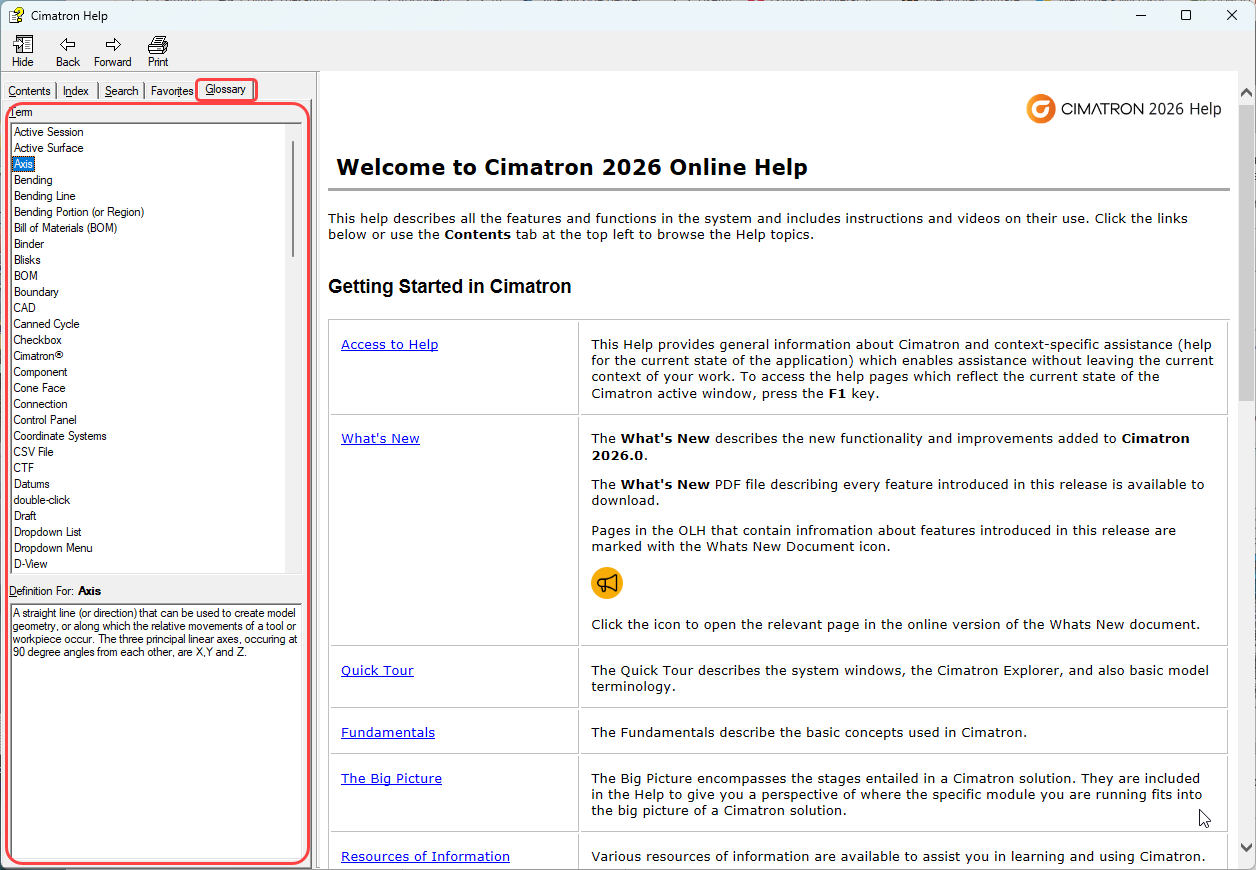
When the HHActiveX.DLL is not registered, the Glossary tab in the Online Help appears empty. The Glossary contains definitions of various terms used in the Help.
The image below shows the Glossary tab in the Online Help.
Solution
Register the HHActiveX.DLL with Administrator Privileges using the following procedure:
1. Open CMD and select Run as Administrator
2. Type the command:
"C:\Windows\System32\regsvr32.exe" "C:\Windows\System32\HHActiveX.dll"