|
|
Solids (Add/New/Remove) - Activate - Step 3
-
Use Undo to delete this extrusion. Click the Deactivate buttonDeactivate button (or select Solid > Deactivate all Objects) and re-create the extrude.
To customize the toolbar:
Select View > Customize > Customize Toolbars & Menus from the menu bar.
Add the Deactivate All Objects function to a toolbar as required. -
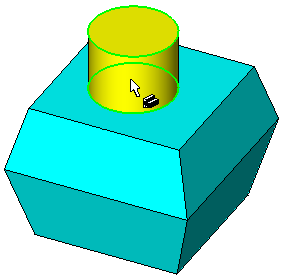
In the (right-click) popup menu, only New Extrude is available since there is no object to add. This time the feature is yellow (the color of newly created objects).
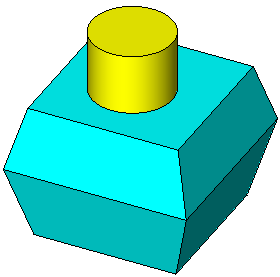
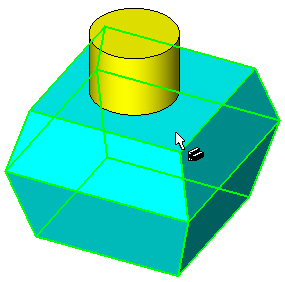
By setting the filter to select Objects, you can see that the blue and yellow objects are separate.