|
|
Add Cutters to the New Cutter Library File
We'll now add cutters to the new .chl file (Exercise.chl).
-
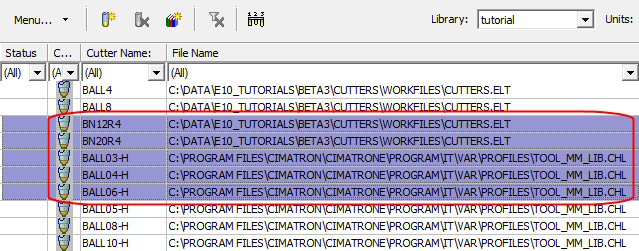
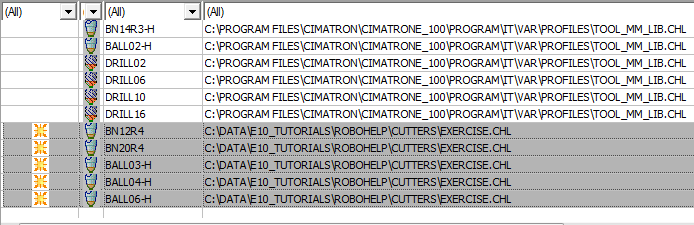
Select the cutters as shown in the following image:
-
Right-click and select CopyCopy.

-
Right-click and select PastePaste.

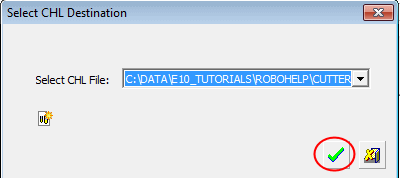
Cutters can be only copied into library files (.chl) because in this specific library (Tutorials) there is more than one .chl file (Tool_MM_Lib.chl and Exercise.chl). You must specify which .chl library to copy the cutters to.
-
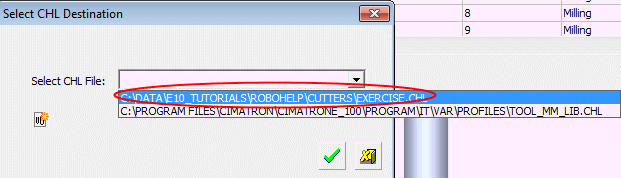
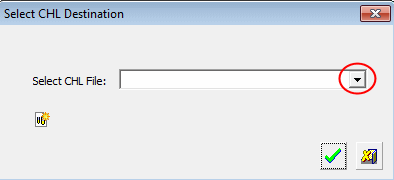
Click the dropdowndropdown menu, and select the Exercise.chl file.
-
Click OK.
-
Paste the cutters once more into the Cutter Library dialog.
-
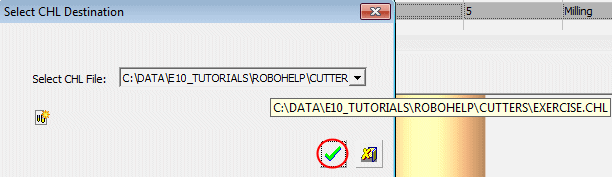
Select the Exercise.chl file as the copy destination.
-
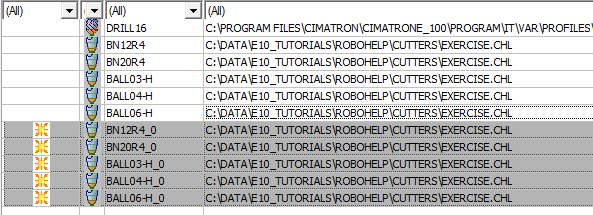
The cutters were copied into the .chl file.