|
|


BOM
Purchase List
- ActivateActivate the sheet.
- Click the BOM buttonBOM button
 .
. - In the BOM dialog, select the Purchase List option.
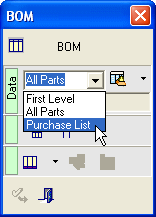
The Purchase list contains parts with identical Standard NumbersStandard Numbers used during purchase.
The standard Number can be viewed in the Cimatron E Explorer Advanced Tab.

- Select a view from the sheet and close the BOM dialog box.
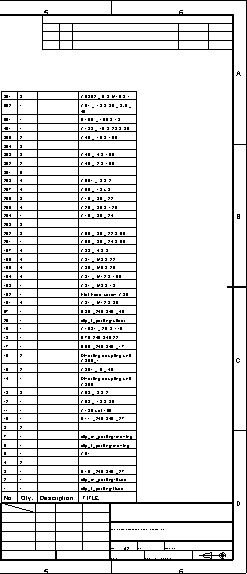
The BOM is automatically placed above the Title Box.
- Double-click on the BOM to activate it. In the BOM dialog box, click on the Edit BOM buttonEdit BOM button.
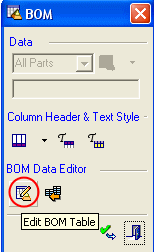
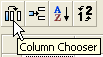
- In the Edit Part List dialog, click on Select ColumnsSelect Columns and remove the column shown below:
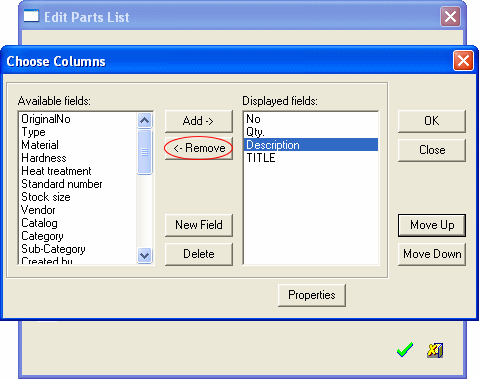
- Click OK.
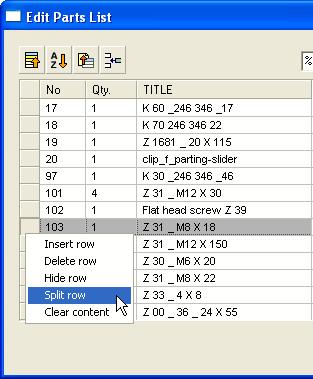
- While in the Edit BOM mode, right-click on the left margin of column 103 and select Split RowSplit Row.
-
Click OK and edit the BOM columns so they appear as below:
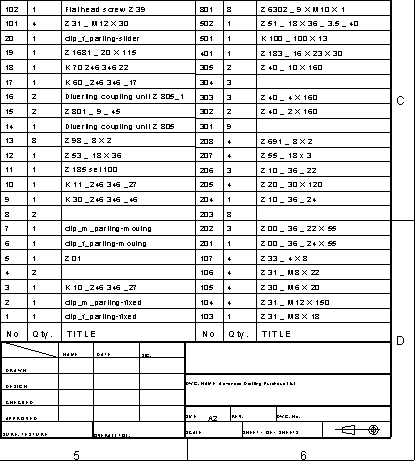
Either drag individual columns or move the whole table as shown below:
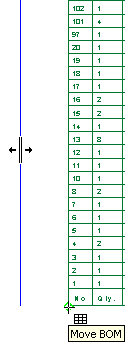
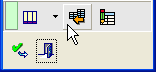
The split BOM side functionsplit BOM side function is now enabled in the BOM dialog box.
To turn off the Split Row function, enter the BOM edit mode and on the left margin of column 103 (marked in blueblue) select Split Row again.

Experiment with the various sorting options in the Edit Parts List dialog box.
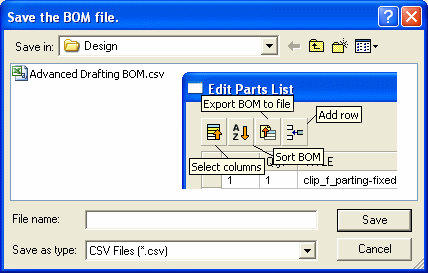
Also note how the BOM can be exported to a CSV file (Excel).