|
|
Create Groups - Step 3
-
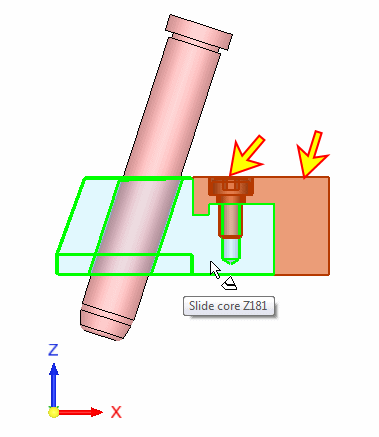
Show group 03. Select the remaining components and then highlight the Slide Core Z181 component (move the cursor over it).
-
While the slide core is highlighted, click the Middle Mouse Button to add the selected components to the group that the slide core belongs to (Group 03).
-
Right-click on New Group#2 in the group list (in the motion simulation dialog), and click Lock Group.
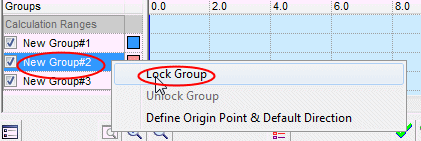
A locked group will stay stationary during the entire simulation and no motions can be applied to it. It is recommended that at least one group is fixed.


