|
|
New Cutter
-
Click the CuttersCutters button in the Guide to open the Cutters and Holders dialog.

-
Click the New CutterNew Cutter
 button to define a new cutter in the Cutters & Holders dialog.
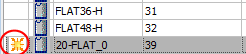
A new row is added at the bottom of the Cutter Table and marked with an asterisk symbol in the Status column. This sign indicates that the cutter’s parameters have not yet been saved. It is removed when you click OK or Apply.The new cutter parameter values (including the comment) are based on the values of the last cutter that was in focus (either an active cutter or the cutter that was highlighted in the Cutter Table before the new cutter was invoked). The new cutter name is also based on the cutter in focus.
-
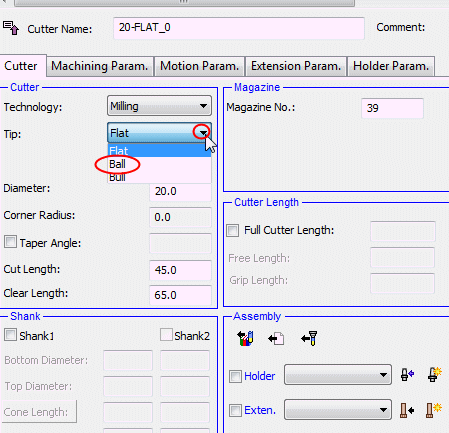
In the Cutter tab - Cutter pane, ensure the Technology is set to Milling.
Milling Tools contains 3 tip types: Flat, Ball, and Bull. Each tip type can have a shank or taper. -
Select the Ball option.
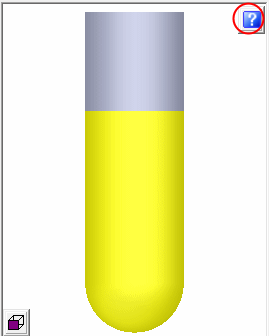
Note that the picture of the selected cutter is displayed. -
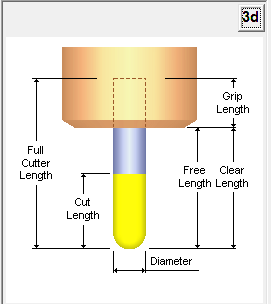
Click the Show Static Cutter Figure button to display the graphic representation of the type of cutter selected as well as its definitions.