|
|
Taper and Shank
-
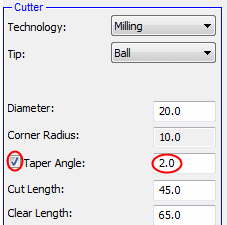
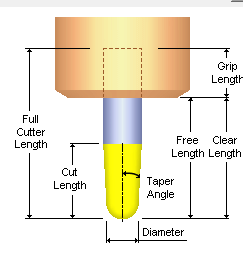
Check the Taper Angle option. Set the angle to 2.
-
Mark the Shank checkbox. Note that the parameters of the shank are no longer grayed out.
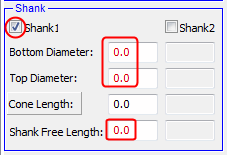
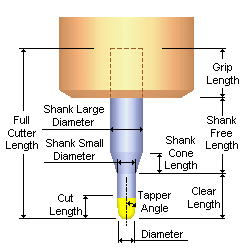
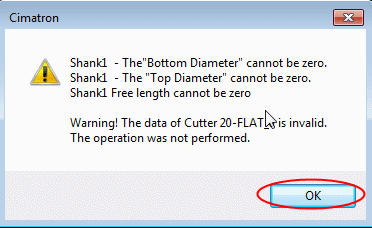
Invalid parameter values are displayed in RED to signify that these values should be changed.If Apply or OK is clicked while invalid parameter values appear in the dialog, a message is displayed showing the errors.
-
Change the Technology to Drilling.
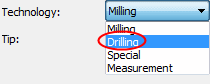
The Drilling Tools include 4 types: Drill, Ream, Tap, and Center. Each drilling tool can have a shank.When editing a cutter, only the Milling and Special options are available. In the case of a drill tool, the dropdown list is grayed out and the Drill option is displayed.
-
Select the Drill type.
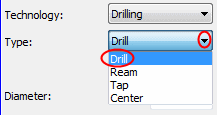
Drilling tools can be used only with Automated or Legacy drill procedures. If you open the cutter table from other procedure types, you cannot select a drill cutter.
A cutter that has been saved cannot be changed to drill. Similarly, drills cannot be changed to cutters.
Note that drilling tools can also use holders.


