|
|
Editing a Segment Row Step 7
-
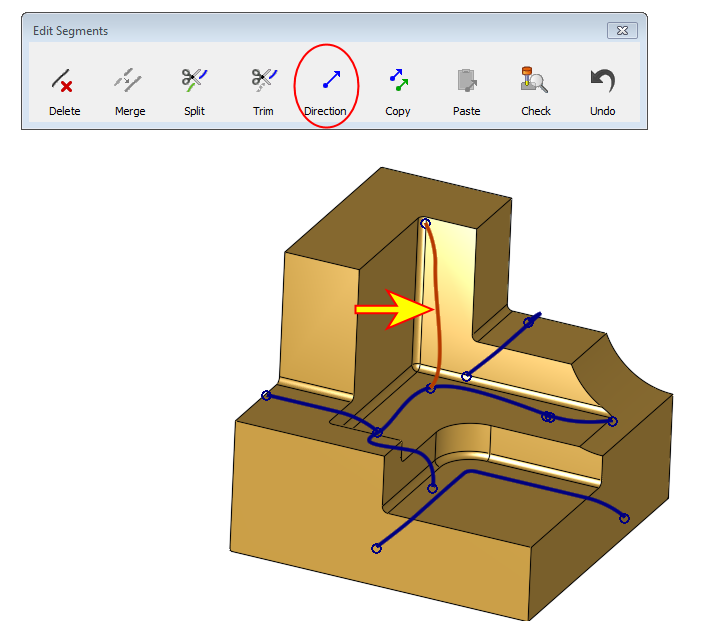
Select the top vertical segment and click Direction.
-
A Direction Definition dialog opens.
It is similar to and functions the same as the UCS by NC Tool.
Set the Tilt Angle to 30 and the Tilt Direction to -45.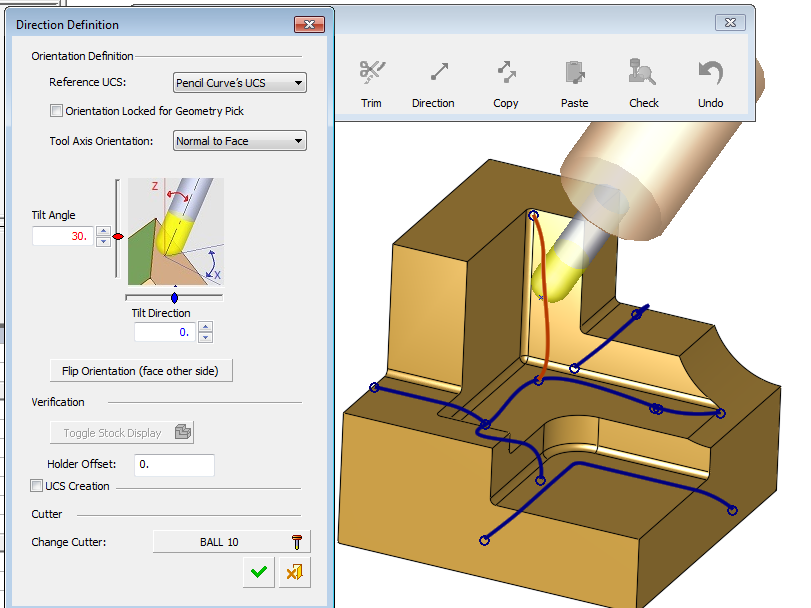
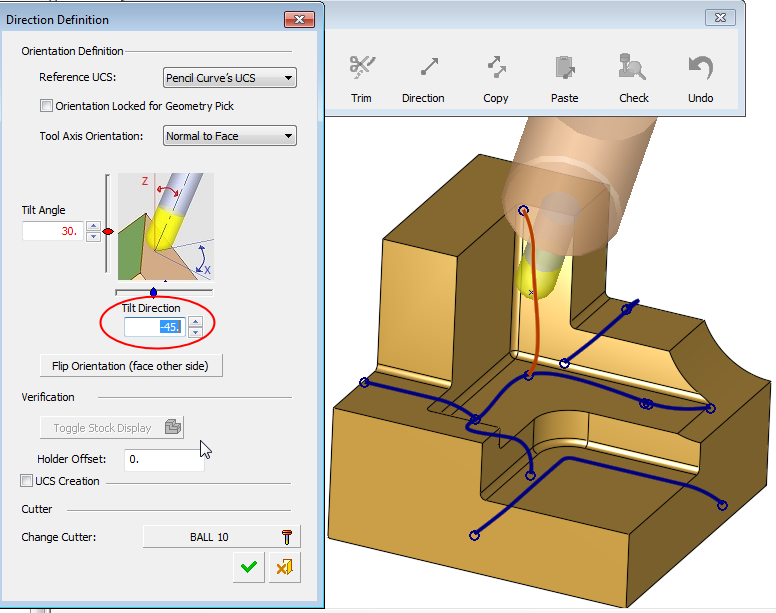
Note that the UCS Creation at the bottom of the dialog is optional
-
If a UCS is created, it can be used for a 3+2X procedure.
-
If not, the direction will be considered when using a 5X procedure.
-
-
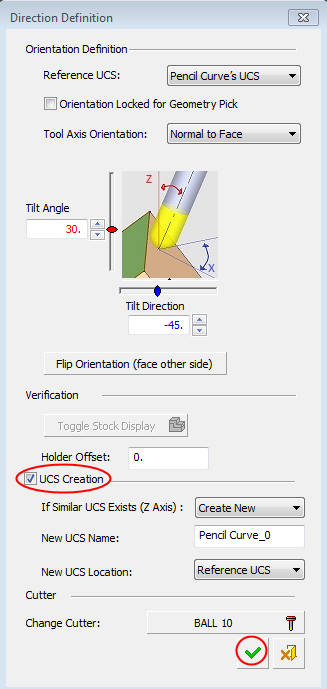
Mark the UCS Creation check box.
Set the parameters as shown in the following image and notice the default UCS name, which can be changed appropriately.
Click OK.
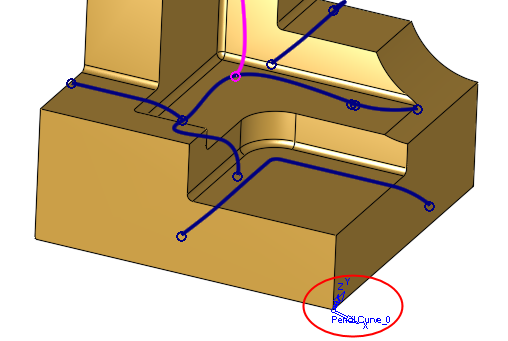
The new UCS is displayed.
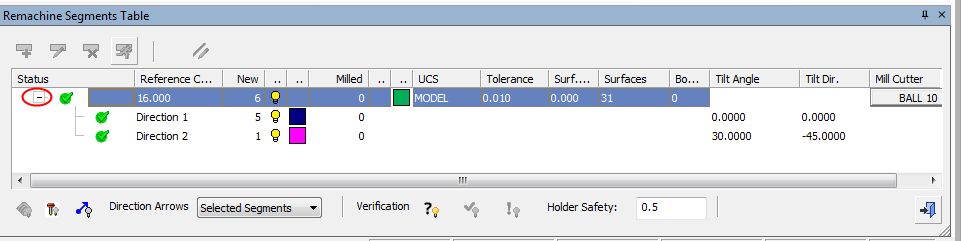
The selected segment, which has now been assigned a new direction, has changed its color. Expand the segments row by clicking on the + on the left.
Notice that the row has two Direction rows. Each one represents a different direction. The color of each direction matches between table and segments in the graphics screen.