|
|
Freeze-Axis Stock
-
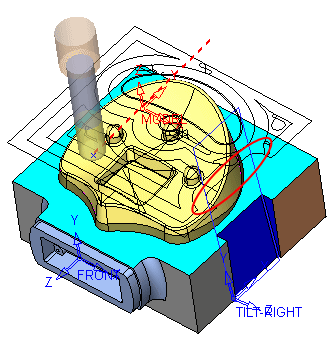
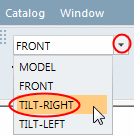
ActivateActivate the Tilt-Right UCS.
-
Create a new Stock (the Rough procedure shown in the following image was created in the last step) using the Freeze Stock option.
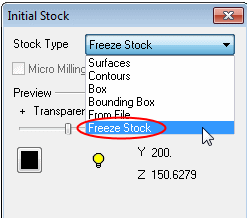
The remaining stock of the previous 3X procedure is calculated independent of its orientation. -
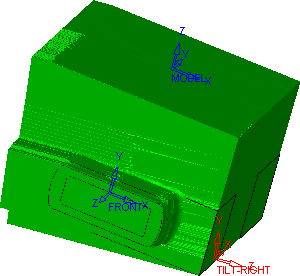
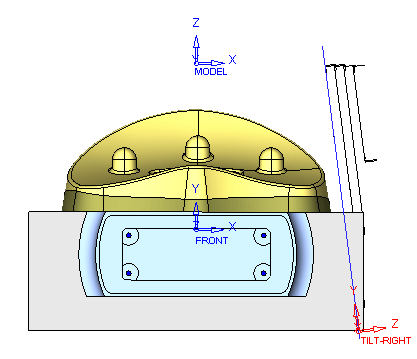
In the following image, the remaining stock is viewed from the perspective of the Tilt-Right UCS.
The Freeze Stock option calculates and saves, within a Stock procedure, the remaining stock at the location in the Process Manager at the time of the calculation. This stock can then be used later as any stock procedure is used.
-
Copy/Paste the Rough procedure created and select the Tilt-Right UCSTilt-Right UCS.

-
Click the SketcherSketcher
 button.
 -
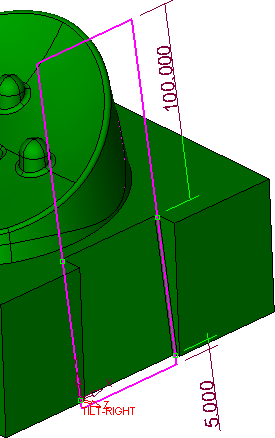
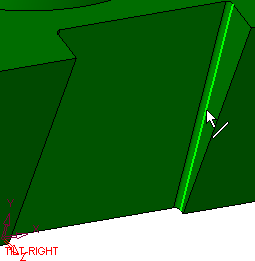
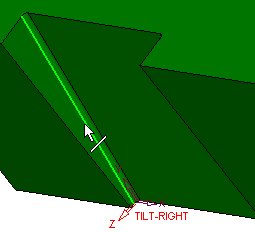
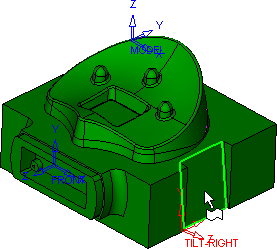
Pick the face shown herehere and create the following sketch:
Select the reference lines shown herehere.
-
Exit the Sketcher and select the Boundaries tab in the parameters table.
Select the Multi Contours option.
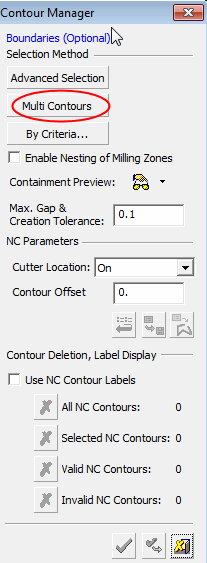
-
Pick the previously created sketch and click OK.
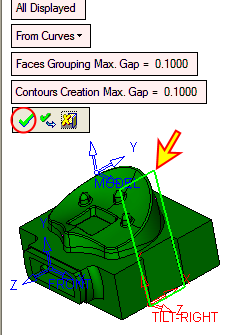
-
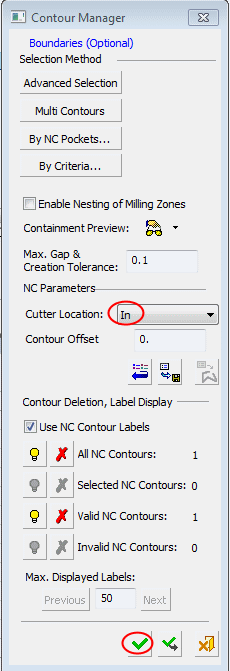
Set the Cutter Location to In.
Click OK.
-
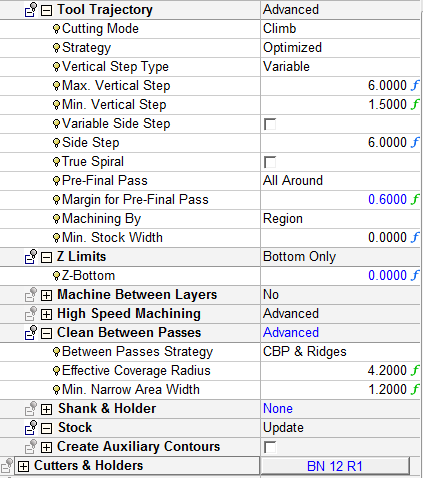
Set the parameters as shown in the following image:
-
Save & calculate the procedure.
The Rough operation is relative to the Stock orientation.
-
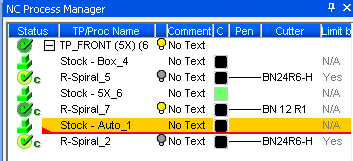
Edit the Stock By Bounding BoxStock By Bounding Box and change the Stock Type to Freeze Stock.
-
RerunRerun the Rough procedure related to this stock (the last one in Process Manager).
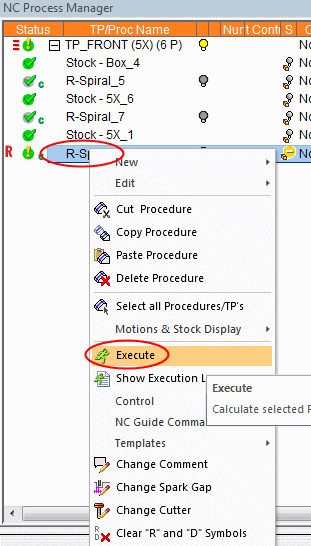
The Rough procedure is now calculated using the remaining stock of the last procedure. For this reason, it machines around the area already removed by the procedure created above.