|
|
Project 1
-
Turn on the Cap set.

-
Select the last procedure named F-All 4 and enter the Motion Editor.
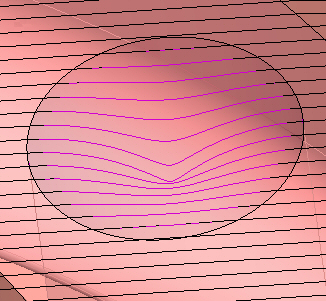
In some cases, it is more efficient to use motion editing of the procedure rather than editing it. In this case, we are projecting the resulting toolpath on the missing surface(s), rather than adding the missing cap surface(s) by editing the procedure’s input and re-executing.
-
Select the last procedure F-All 4.
Enter the Motion Editor from the NC Utilities.
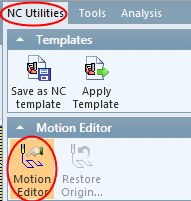
The Motion Editor Guide appears on the left. -
Click the Project button.
The first stage of the feature guide is to select the motion that will be projected.

-
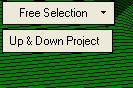
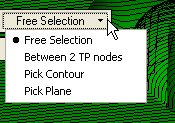
Expand the selection mode to see the variety of selection options.
Accept the Free Selection default option.
The Motion Editor icon appears in the upper right corner of the screen. It indicates that you are within the Motion Editor Environment.