|
|
Trim - Step 1
The upper face will now be trimmed with the contour just created.
-
Select Faces > Trim Face.
-
On the upper face (indicated below), select the area to the right of the contour (the area to remain after the trim operation).
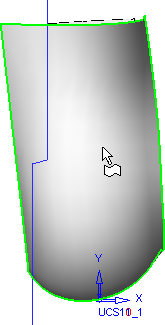
Multiple faces can be trimmed or split with a contour. The trimming direction is determined by the selection area on the face (by default the picked side remains).
-
Press the Middle Mouse Button to accept this face, and pick the contour created.
-
Change the Normal Projection option to Direction Projection.
Click herehere to discover why the Direction Projection option is used.
The Normal Projection option calculates the normal direction of the contour to the face and is used when:
-
The relationship between the contour and the face to be trimmed is not complex.
-
The gap between the contour and face is relatively small.
In this case, even though the contour is simple due to the complex shape of the face to be trimmed and the large gap between the contour and the face, the Direction Projection option is used.
-
-
Click the base of the Direction Projection arrow and choose Along Z.
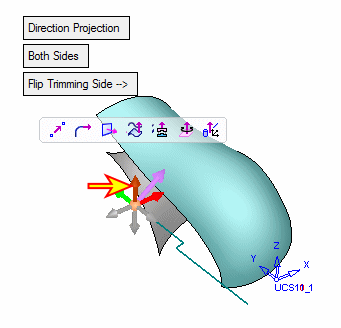
The original position of the Direction Projection arrow produces no result where the contour trims the face directly (the contour is not trimming the face and the Along Z option is selected).
-
Flip the trimming side if necessary.
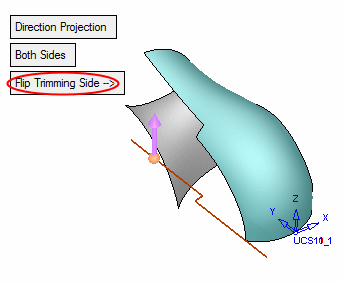
-
Press OK in the Feature Guide.
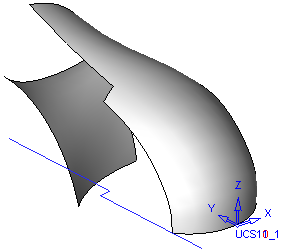
-
Select Wireframe > Datum > Plane > Main Planes.
-
Pick the UCS and click OK in the Feature Guide to create the main planes.


