|
|
Vertical Step
Z-Top
In this exercise, we'll see how to limit the Z-Top and Z-Bottom values for Rough Machining.
-
Open the Vertical Step.elt file.
-
Change the Stock Type to BoxBox and change the 2nd Corner Z value to 140.
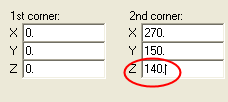
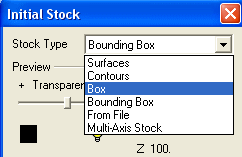
-
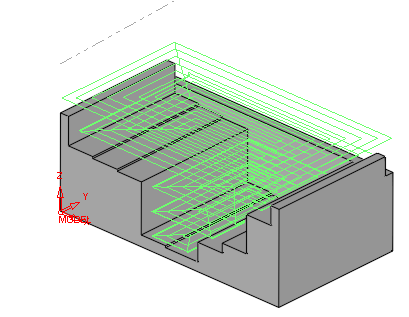
Open the Rough procedure and under the Tool Trajectory menu, notice that there is no limit for the Z Top and Z BottomZ Top and Z Bottom of the toolpath.
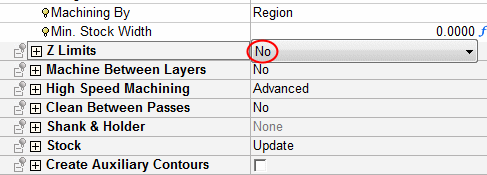
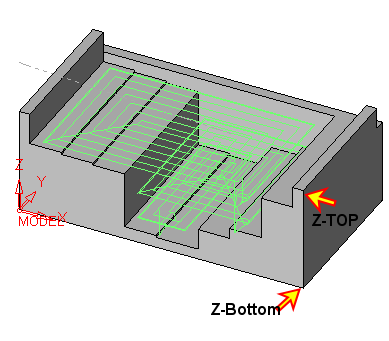
-
Save and calculate the procedure.
-
Select the Global FilterGlobal Filter and hide the Air Motions and Approach & Retract options.
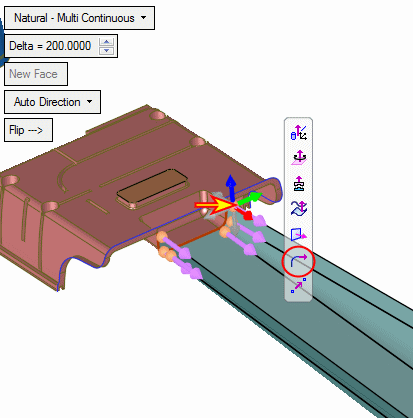
-
Rerun the procedure and check the Z-Limits option.
Accept the Z-Top value = 100 (maxpz).
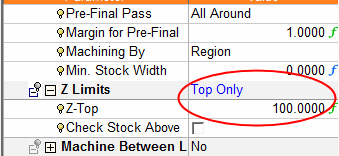
A full list of NC variable names can be found here.
-
Save and calculate the procedure.
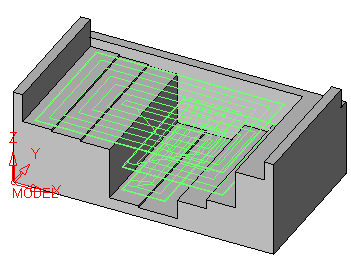
The highest Z level for milling remaining stock has been set.
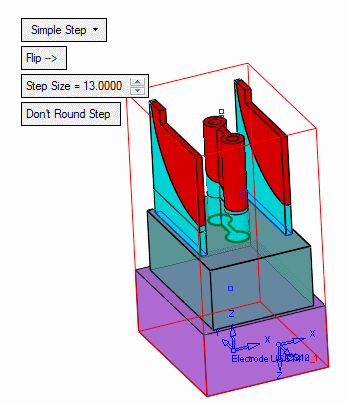
In our case, the first machining layer is a Fixed Vertical StepFixed Vertical Step down from the Z-Top height set.
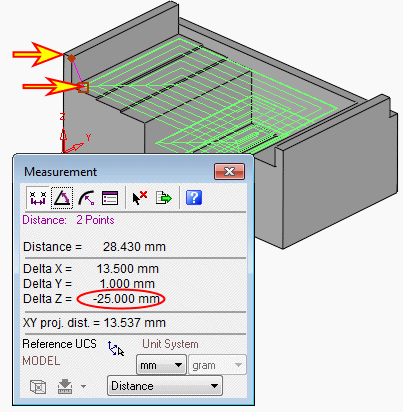

-
Edit the procedure and change the Z-Top value to 66.
Save and calculate the procedure.
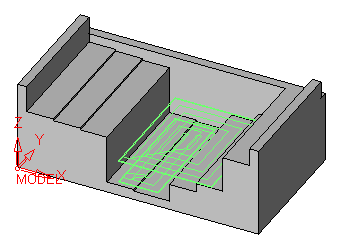
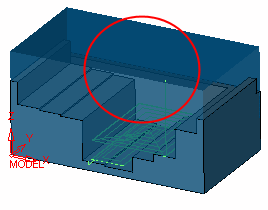
Using the set Z-Top value, the cutter would break due to the remaining stock above the valueremaining stock above the value.
-
Edit the procedure and mark the checkbox for the Check Stock Above Z-TOP parameter.

-
Save and calculate the procedure.
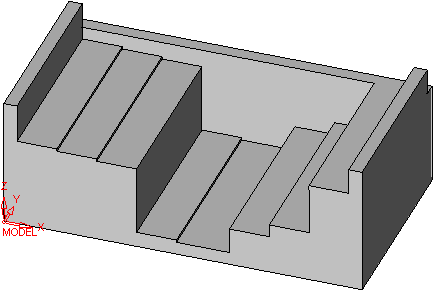
The part has not been machined as stock is detected above the Z-Top value.


