Process Creation
Click the Variable Conic process buttonVariable Conic process button . The part definition dialog will automatically change to the Process Definition one.
Change the parameters as follows:

The process that you have just defined is displayed in the Toolpath Manager under the part, however, a red light is displayed next to the process as it has not been calculated yet.
Click the Calculate buttonCalculate button  or right click on the name of process to confirms the parameters entered and calculate the process. A green light is now displayed, indicating that the process has been calculated correctly.
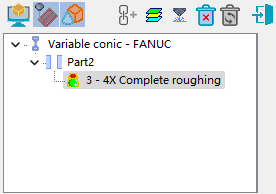
The final result is displayed in the following image:
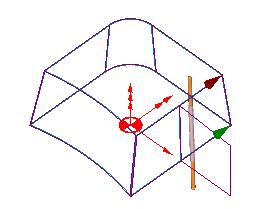
Note: The wire diameter that you see here does NOT match the real diameter. Its size has been enlarged for visual clarity.
To simulate the process, click the Simulate button Simulate button  .
.
(Remember that you can dynamically rotate the part during the simulation by pressing the right mouse button while moving the mouse).
To exit the simulation, click the Exit buttonExit button .
.