|
|
Add Comparison Part
Add Comparison Part
We will now add a comparison part to the assembly (the first ECO file received from the customer).
At the same time, we will also create a new ECO comparison. Note that various comparisons can be made within the ECO tree.
A comparison can be made between the old ECO and the new ECO; between the new ECO and the Work Part; and the new ECO and any other part in the mold.
-
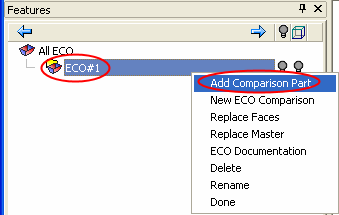
Right-click the ECO#1 folder and select Add Comparison Part.
-
Select the basicECO1.elt file.
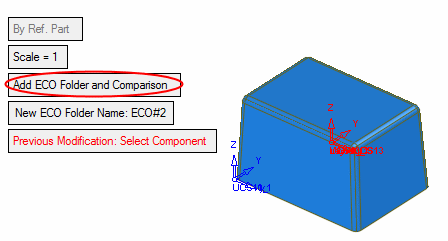
Several options are displayed. One of the default options is to add a new ECO folder to tree, including a new comparison operation.
-
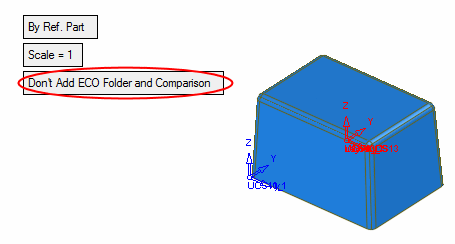
You do not have to create the ECO folder and the comparison (Toggle the option Add ECO Folder and Comparison to Don't Add ECO Folder and Comparison). For this tutorial, do not change the default option.
When adding a new comparison, the system requires the input of the Previous modification part. (The comparison will be performed between the current added ECO part and the previous one.)
Do not press this button yet.
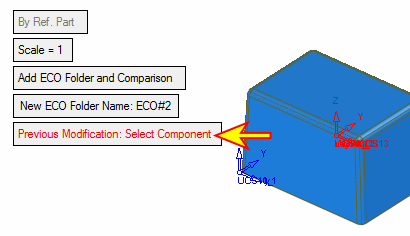
-
There are several ways to place the current added ECO part. We will discuss the options later. Accept the default options and select the displayed work part.
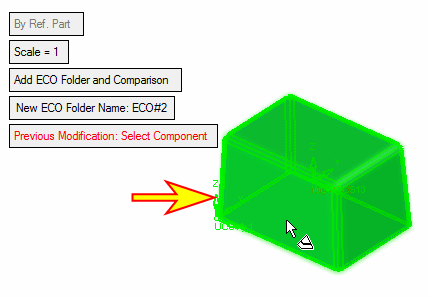
The positioning and scale is based on the selected reference part. The new ECO part was placed on top of the work part.
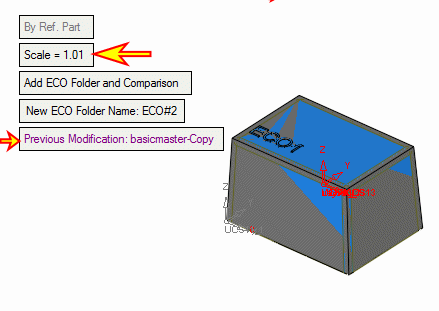
The system automatically modified the scale of the ECO file according to the scale of the master part in the work part (1.01).
The system looks for the last ECO file (or master) used in the file. While selecting the work file, the system automatically detects that the Previous modification part as the master file. When the selection is done automatically, the text changes to a purple color. If we select the part manually, the text will change to black.
The comparison will be created between the ECO1 part and the master part.
-
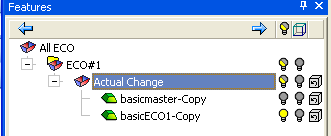
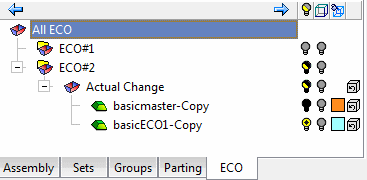
Click OK. A new folder with a new comparison (between the ECO1 and the master file) is created.
Note that the added ECO part is a copy of the original ECO1, including the scale value applied in the work part.
-
Right-click the first empty ECO folder and delete itdelete it.
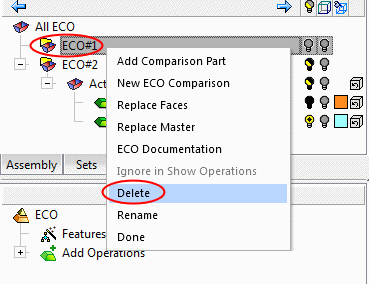
-
Rename ECO#2 to ECO#1.