|
|
ECO Comparison
Edit the Comparison
-
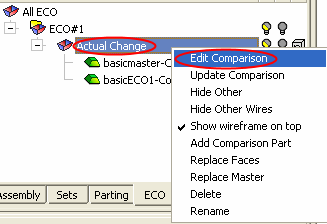
Right-click the new comparison and select Edit Comparison.
-
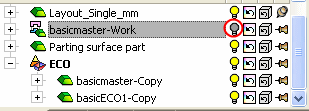
Hide the work part in the Assembly tree to better analyze the comparison results.
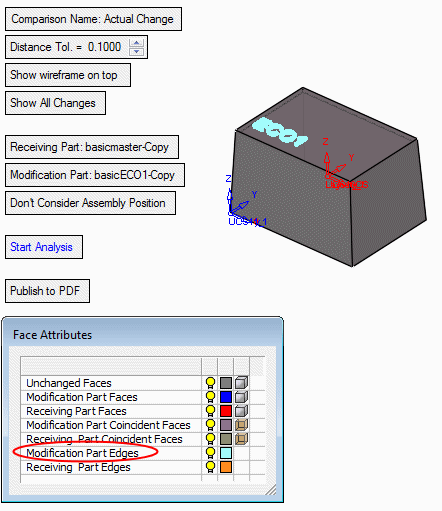
Notice the changes due to the Modification part (ECO1 part) colored in CYAN edges.
The ECO Comparison function compares and detects any engineering changes made between the ECO part received from the customer and the Receiving part, in this case the master part .
Click herehere for more on the Face Attributes dialog.
-
Unchanged Faces: Faces that are unchanged after the comparison.
-
Modification Part Faces: Faces that exist only in the Modification Part - usually the new ECO part. These are the added faces.
-
Receiving Part Faces: Faces that exist only in the Receiving Part - usually the work or active part. These are the faces that need to be removed (depending on the Mending).
-
Modification Part Coincident Faces: Coincident faces on the Modification Part. Coincident faces are two or more faces that occupy the same space and represent the same surface.
-
Receiving Part Coincident Faces: Coincident faces on the Receiving Part.
-
Modification Part Edges: The edges of the added faces in the Modification Part.
-
Receiving Part Edges: The edges of the faces that need to be removed in the Receiving Part.
In general, the Receiving part is the part that will receive the change. This is usually the work or active part. The selected part name is displayed in the parameter field.
Modification Part is the bearing part. This is usually the new ECO part. The selected part name is displayed in the parameter field.
-
-
Zoom-in on the changes area.
Note that the faces that are different in the modification part (ECO1) compare with the master file are colored in BLUE.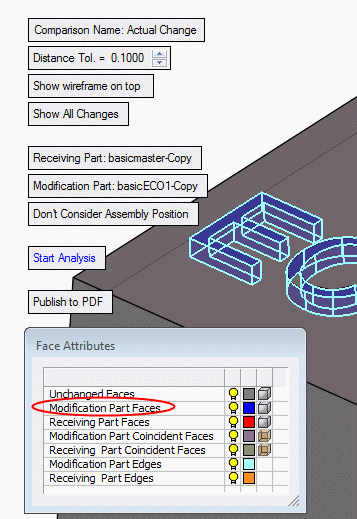
-
Cancel the operation or click OK.


