|
|
ECO Tree
-
Activate the main assembly. Click the ECO Tree from the menu bar or click Assembly > Tools > ECO Tree.
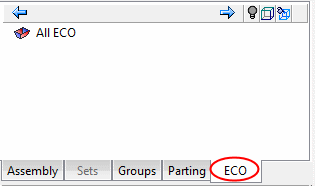
The ECO tab is created. The All ECO folder is opened by default under this tab.
-
Right-click the main folder to view the available ECO operations under the All ECO folder.
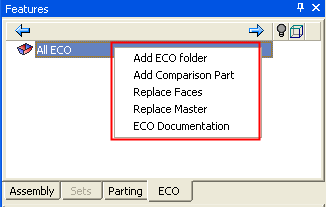
These options can also be accessed via the Tools > ECOTools > ECO tools menu.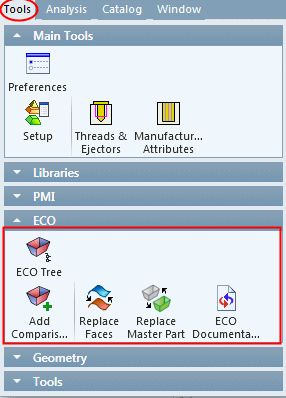
-
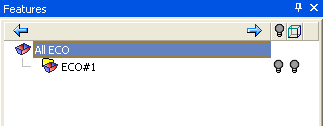
Right-click the All ECO folder and select the Add ECO Folder option.
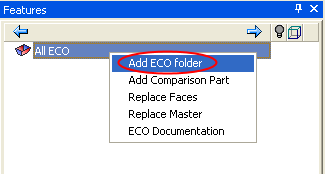
A new ECO#1 folder was created.Each ECO folder represents one ECO file that we have received from a customer and all comparisons and operations referring to this ECO file will be managed under this folder. (Operations such as comparing between the current ECO file and the previous one or comparing between the ECO and the work file, etc.)