|
|
New ECO Comparison
We will now create another new comparison with the same ECO file. This time the comparison will be done between the part that we would like to update (the work part) and the ECO1.
Note that the comparison between the part that we wish to update, whether it is the work part or active part in a mold project, is the comparison that will be used later to actually perform the changes. (Other comparisons are used for analysis purposes only.)
-
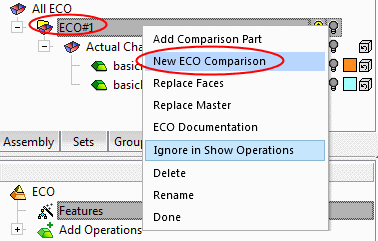
Right-click the ECO1 folder and select New ECO Comparison.
-
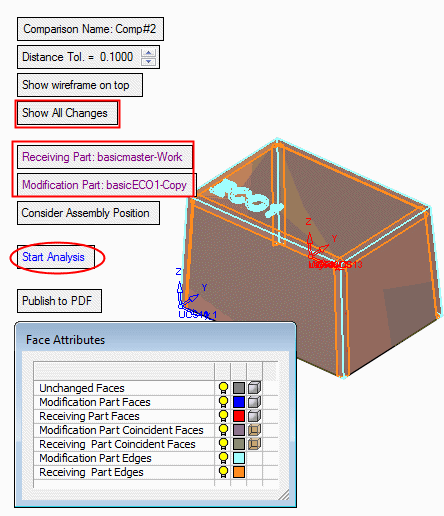
Accept the default parameters and press the Start Analysis button.
Show All Changes: Show all changes between the Work Part (Receiving part) and the ECO1 (Modification part). These changes includes the mending job done in the work file.
The highlighted changes are composed of the engraved text ECO 1 and the rounds of the box edges.
-
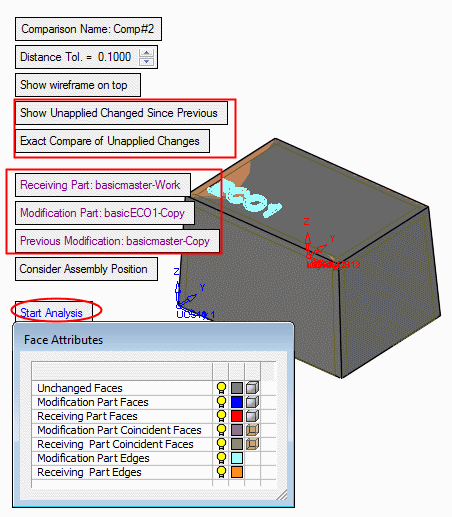
Because we would like to keep the mending job (rounded edges) in the work files and deal only with the changes due to the ECO1, toggle the option Show All to Show Unapplied Changes Since Previous.
Three parts are now involved in the comparison: Receiving part (Work part), Modification part (ECO1), and Previous Modification (Master part).
The system shows only changes between the previous modification and the current modification parts that were not yet applied in the receiving part (work part). Only the engraved text is shown.
-
Click OK.
As explained before, this comparison (between the work part and ECO1) is the relevant comparison for the update process. There are two ways to update the work part (or active parts in a mold):
-
Replace Faces: The Replace Faces function replaces faces in the updated part with other part faces (deleting faces from the updated part and "importing" faces from the modification part).
-
Replace Master:The Replace Master Part function replaces the "master" part in the "work" part with a new ECO part.
(Recommended step) Use the replace master option at the beginning of the work.
-
-
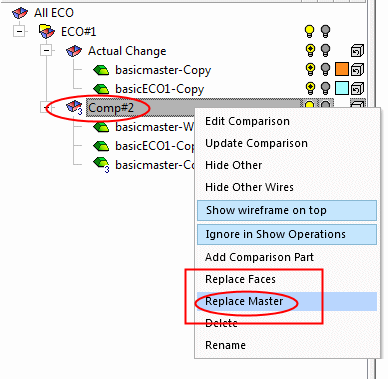
Right-click the Comp#2 comparison. Select the Replace Master option.
-
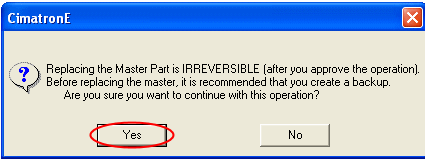
Click Yes in the dialog shown below:
-
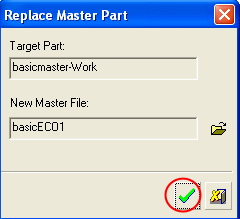
The Replace master part dialog is displayed.
The target part (the part to be updated) is the work part and the new master is the new ECO file.
Click OK.
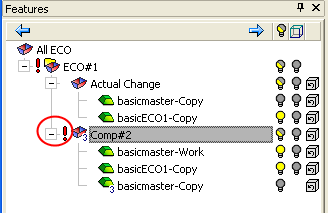
Notice the exclamation mark next to the Comp#2 comparison that signifies changes done in the work part.
-
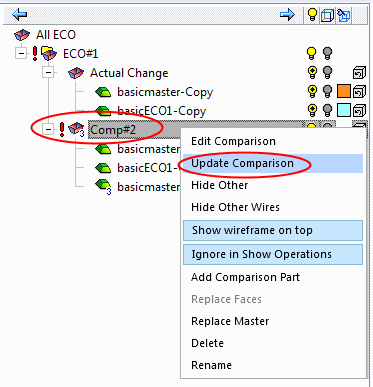
Right-click the Comp#2 comparison and select Update Comparison.
-
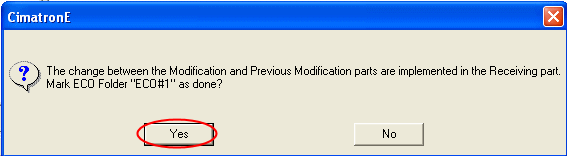
Click Yes in the dialog shown below:
-
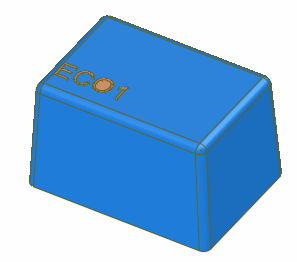
Display the work part only. The changes were implemented correctly.
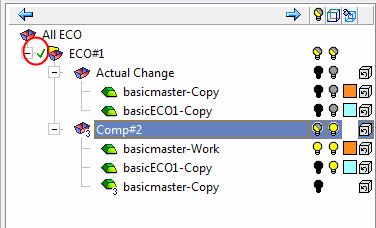
The check mark (Done) next to the ECO1 folder indicates that the update process for an ECO# folder is complete.
-
Save and close the file.


