|
|
Local Modifications
-
Copy/Paste the 5XTrimming procedure.
-
Edit the procedure, change Approach and Retract types to TangentTangent and the General Boundary Offset parameter to 0.
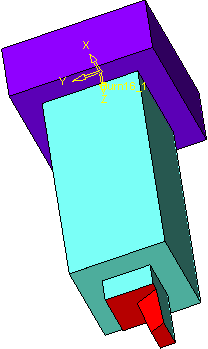
-
Switch to Top view and click Select (by the Local Modification parameter).
-
In the Local Modifications dialog, select Delete Point(s).
-
Drag a box around the direction arrows as shown in the following image:
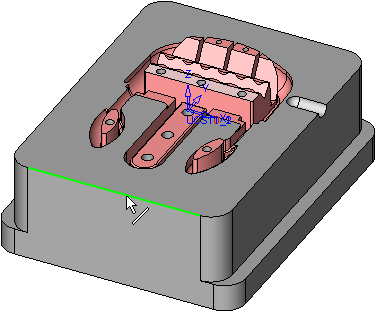
-
Click ApplyApply in the Local Modifications dialog.
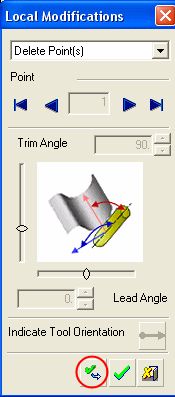
-
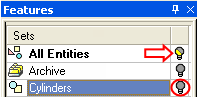
Select Modify Point, click the direction arrow circled below (start point), and change the Trim Angle to 60.
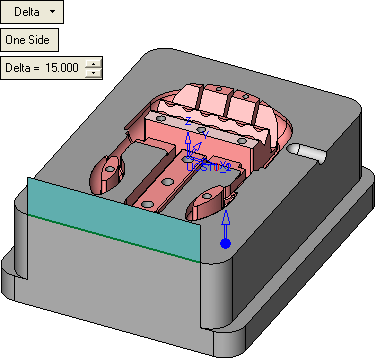
-
Change the circled direction arrows' Trim Angle to 120.
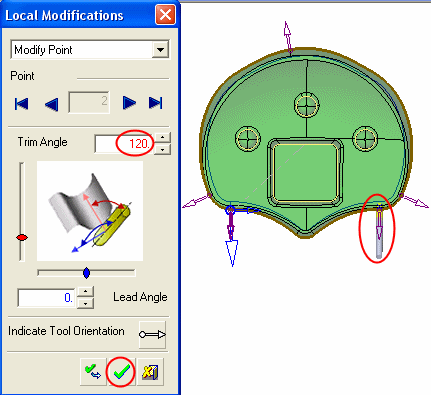
-
Save & calculate the procedure.
This moviemovie shows the modified tool movements. -
Edit the procedure.
-
From the Local Modifications dialog, select the Modify Point(s) - Parallel to PlaneModify Point(s) - Parallel to Plane option.
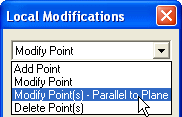
-
Pick the plane shown herehere and select all the direction arrows (points).
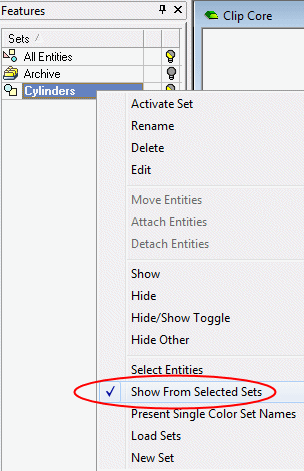
-
Save & calculate the procedure.
The Trim and/or Lead Angles for the direction arrows are now points according to the defined plane.
More efficient tool movements are displayed in this moviemovie. -
Create three Connection procedures: before, in between, and afterbefore, in between, and after the 5x Trimming procedures.
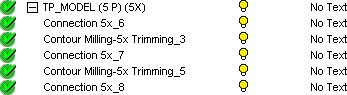
Copy/Paste a Connection procedure created in the Connection step.
Change the Clearance Type of the middle Connection procedure to NoneNone.